Life in germany for engineers

Moving to Germany changed more than my location. It changed how I think about work, time, independence, and long-term planning. This post is a short reflection on the lessons that had the biggest impact on me.

1. Time Is Treated as a Real Resource

One of the first things I noticed was how seriously people treat time. Meetings start on time, public services follow clear schedules, and personal commitments are respected. That sounds simple, but it changes your habits very quickly.

In practice, that means:

  • you prepare before meetings instead of improvising during them,
  • you communicate delays early,
  • and you become more realistic when estimating work.

That mindset is very useful in engineering teams. Good planning is not bureaucracy. It is respect for other people's energy.

2. Independence Is a Daily Skill

Living abroad forces you to solve many problems on your own: paperwork, banking, renting, tax forms, insurance, and communication in a second language. At first that can feel stressful. Later it becomes a kind of training.

You learn how to:

  • read official information carefully,
  • ask precise questions,
  • keep documents organized,
  • and handle uncomfortable tasks without waiting for perfect conditions.

That same skill transfers well to software engineering. When production breaks, you rarely have the full answer immediately. You move step by step, reduce uncertainty, and document what you learn.

3. Work-Life Balance Is More Structured

Germany also made me think more seriously about sustainability. Many people work hard, but they do not treat burnout as a badge of honor. Vacation, focused work hours, and recovery time are considered normal and necessary.

For people in IT, this is important. A good engineer is not only someone who can work late. A good engineer can stay consistent for years, learn continuously, and make good decisions under pressure.

4. Small Systems Make Life Easier

Another lesson I appreciate is the value of systems. A calendar, a checklist, a folder structure, a budget sheet, or even a weekly meal plan can remove a lot of mental friction. Germany made me appreciate structure not as something rigid, but as something freeing.

Examples that helped me personally:

  • keeping a simple document checklist for immigration and tax paperwork,
  • tracking learning goals by month instead of by vague intention,
  • planning deep work blocks for coding and writing,
  • and separating urgent tasks from important long-term tasks.

5. Growth Is Often Quiet

Living in another country can feel slow at first. Progress does not always look dramatic. Sometimes growth is simply understanding one more form, having one better conversation, or becoming more confident in a difficult environment.

That idea matters for career growth too. You do not become a stronger engineer in one breakthrough moment. You improve by repeating useful habits: reading documentation carefully, building small projects, reviewing mistakes, and communicating clearly.

Final Thoughts

Germany taught me that a better life is not built only from big ambitions. It is often built from better habits, clearer systems, and more disciplined thinking. For me, that has influenced not only daily life, but also the way I work as an engineer and writer.

Docker and kubernetes helm repositories

Creating a Helm chart repository

In this post, we’ll learn how to create and work with Helm chart repositories.

A chart repository is an HTTP server that houses an index.yaml file and optionally some packaged charts. Because a chart repository can be any HTTP server that can serve YAML and tar files and can answer GET requests, we have a plethora of options when it comes down to hosting our own chart repository. For example, we can use a Google Cloud Storage (GCS) bucket, Amazon S3 bucket, GitHub Pages, or even create our own web server.

Once the charts are ready and we need to share them, the easiest way to do so is by uploading them to a chart repository. However, Helm does not come with a chart repository while Helm can serve the local repository via “helm serve”.

Github Pages

We can create charts repository using GitHub Pages. It allows us to serve static web pages.

All we need is to host a single index.yaml file along with a bunch of .tgz files.

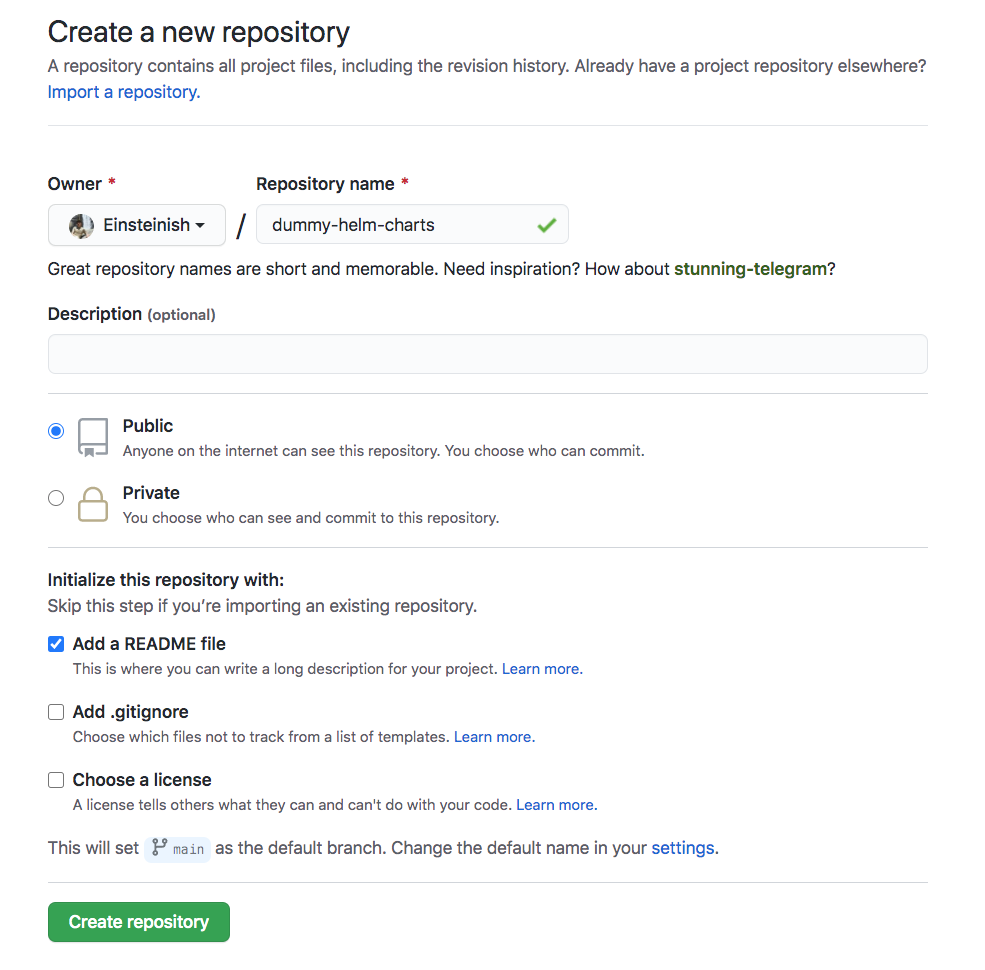
Create a new Github repositoryCreate-a-new-Github-Repo.png

Though it’s empty repo, let’s just clone it for now:

$ git clone https://github.com/Einsteinish/dummy-helm-charts.git    

Create a helm chart

We need to have the Helm CLI installed and initialized:

$ helm version
Client: &version.Version{SemVer:"v2.16.10", GitCommit:"bceca24a91639f045f22ab0f41e47589a932cf5e", GitTreeState:"clean"}
Server: &version.Version{SemVer:"v2.16.10", GitCommit:"bceca24a91639f045f22ab0f41e47589a932cf5e", GitTreeState:"clean"}

$ helm3 version
version.BuildInfo{Version:"v3.3.1", GitCommit:"249e5215cde0c3fa72e27eb7a30e8d55c9696144", GitTreeState:"dirty", GoVersion:"go1.15"}    

We’re going to use the directory ./sources/ for the sources of our charts. We need to create charts and copy them into the ./sources/:

$ cd dummy-helm-charts/
$ mkdir sources  

$ tree
.
└── dummy-helm-charts
    ├── README.md
    └── sources
    
$ helm create sources/dummy-chart
Creating sources/dummy-chart

$ tree
.
├── README.md
└── sources
    └── dummy-chart
        ├── Chart.yaml
        ├── charts
        ├── templates
        │   ├── NOTES.txt
        │   ├── _helpers.tpl
        │   ├── deployment.yaml
        │   ├── ingress.yaml
        │   ├── service.yaml
        │   ├── serviceaccount.yaml
        │   └── tests
        │       └── test-connection.yaml
        └── values.yaml
        
$ helm lint sources/*
==> Linting sources/dummy-chart
[INFO] Chart.yaml: icon is recommended

1 chart(s) linted, no failures

Create the Helm chart package

$ helm package sources/*
Successfully packaged chart and saved it to: 
/Users/kihyuckhong/Documents/Minikube/Helm/DUMMY/dummy-helm-charts/dummy-chart-0.1.0.tgz

Create the repository index

A chart repository is an HTTP server that houses an index.yaml file.

The index file contains information about each chart and provides the download URL, for example, https://example.com/charts/alpine-0.1.2.tgz for that chart.

The index file is a yaml file called index.yaml. It contains some metadata about the package, including the contents of a chart’s Chart.yaml file. A valid chart repository must have an index file. The helm repo index command will generate an index file based on a given local directory that contains packaged charts.

$ helm repo index --url https://einsteinish.github.io/helm-chart/ . 

$ tree
.
├── README.md
├── dummy-chart-0.1.0.tgz
├── index.yaml
└── sources
    └── dummy-chart
        ├── Chart.yaml
        ├── charts
        ├── templates
        │   ├── NOTES.txt
        │   ├── _helpers.tpl
        │   ├── deployment.yaml
        │   ├── ingress.yaml
        │   ├── service.yaml
        │   ├── serviceaccount.yaml
        │   └── tests
        │       └── test-connection.yaml
        └── values.yaml


$ cat index.yaml
apiVersion: v1
entries:
  dummy-chart:
  - apiVersion: v1
    appVersion: "1.0"
    created: "2020-10-22T13:11:36.940863-07:00"
    description: A Helm chart for Kubernetes
    digest: c8d82f24fc29d40693a608a1fd8db1c2596a8325ecae62529502a1cbae8677a2
    name: dummy-chart
    urls:
    - https://einsteinish.github.io/helm-chart/dummy-chart-0.1.0.tgz
    version: 0.1.0
generated: "2020-10-22T13:11:36.935738-07:00"

Pushing to Github repository

$ git add .

$ git commit -m "initial commit"
[main 4006e22] initial commit
 12 files changed, 322 insertions(+)
 create mode 100644 dummy-chart-0.1.0.tgz
 create mode 100644 index.yaml
 create mode 100644 sources/dummy-chart/.helmignore
 create mode 100644 sources/dummy-chart/Chart.yaml
 create mode 100644 sources/dummy-chart/templates/NOTES.txt
 create mode 100644 sources/dummy-chart/templates/_helpers.tpl
 create mode 100644 sources/dummy-chart/templates/deployment.yaml
 create mode 100644 sources/dummy-chart/templates/ingress.yaml
 create mode 100644 sources/dummy-chart/templates/service.yaml
 create mode 100644 sources/dummy-chart/templates/serviceaccount.yaml
 create mode 100644 sources/dummy-chart/templates/tests/test-connection.yaml
 create mode 100644 sources/dummy-chart/values.yaml

$ git push origin main
...
To https://github.com/Einsteinish/dummy-helm-charts.git
   9d23dff..4006e22  main -> main    

Setting up Github Pages as a helm chart repository

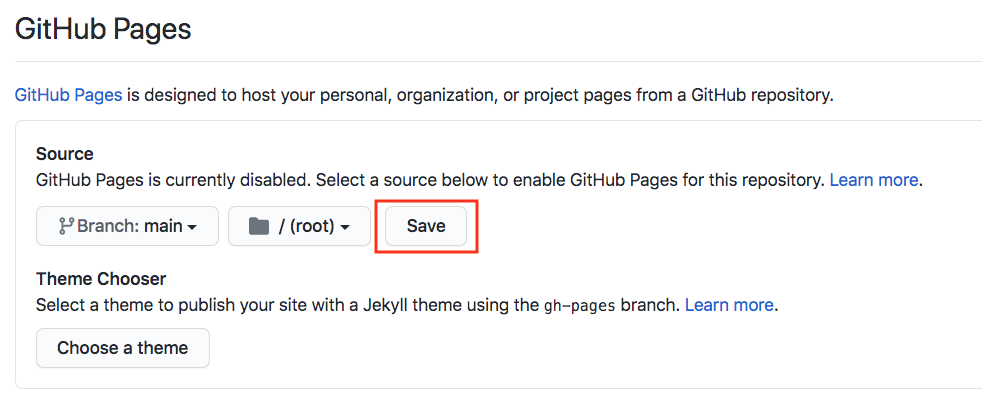
From “settings” of git repository, scroll down to Github Pages section and configure it as follow:Github-Pages-save.png

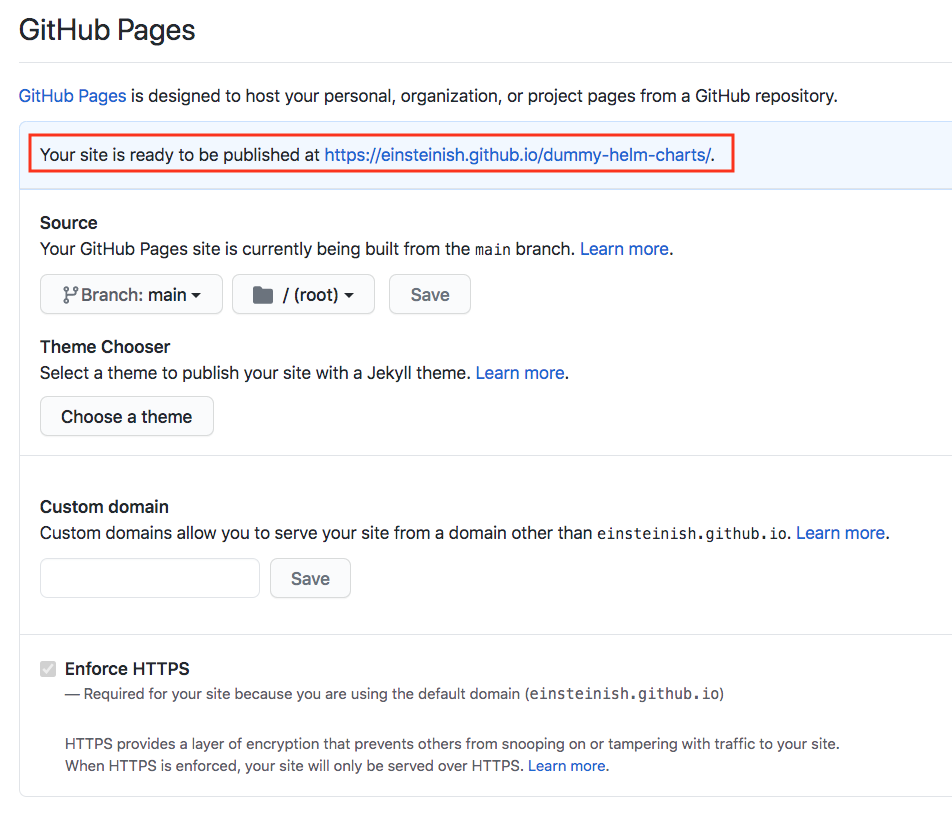
Click “Save”:Github-Pages-saved.png

Helm client configuration

To use the charts on the repository, we need to configure their own Helm client using helm repo command:

$ helm repo add dummy https://einsteinish.github.io/dummy-helm-charts
"dummy" has been added to your repositories
~/Documents/Minikube/Helm/DUMMY/dummy-helm-charts $ helm repo list
NAME  	URL                                             
stable	https://kubernetes-charts.storage.googleapis.com
local 	http://127.0.0.1:8879/charts                    
dummy 	https://einsteinish.github.io/dummy-helm-charts

$ helm search dummy
NAME             	CHART VERSION	APP VERSION	DESCRIPTION                
dummy/dummy-chart	0.1.0        	1.0        	A Helm chart for Kubernetes
local/dummy-chart	0.1.0        	1.0        	A Helm chart for Kubernetes

Chart repository updates

Whenever we want to add a new chart to the Helm chart repository, we should regenerate the index.yaml file. The helm repo index command will rebuild the index.yaml file including only the charts that it finds locally. Note that we can use the –merge flag to incrementally add new charts to an existing index.yaml:

$ helm repo index --url https://einsteinish.github.io/dummy-helm-charts/ --merge index

Docker run command tips

Docker run command

The basic syntax for the Docker run command looks like this:

k@laptop:~$ docker run --help
Usage: docker run [OPTIONS] IMAGE [COMMAND] [ARG...]
Run a command in a new container

We’re going to use very tiny linux distribution called busybox which has several stripped-down Unix tools in a single executable file and runs in a variety of POSIX environments such as Linux, Android, FreeBSD, etc. It’s going to execute a shell command in a newly created container, then it will put us on a shell prompt:

k@laptop:~$ docker run -it busybox sh
/ # echo 'bogotobogo'
bogotobogo
/ # exit
k@laptop:~$

The docker ps shows us containers:

k@laptop:~$ docker ps
CONTAINER ID        IMAGE               COMMAND             CREATED             STATUS              PORTS               NAMES

But right now, we don’t have any containers running. If we use docker ps -a, it will display all containers even if it’s not running:

k@laptop:~$ docker ps -a
CONTAINER ID        IMAGE               COMMAND             CREATED             STATUS                      PORTS               NAMES
4d673944ec59        busybox:latest      "sh"                13 minutes ago      Exited (0) 12 minutes ago                       trusting_mccarthy   

When we execute run command, it will create a new container and execute a command within that container. The container will remain until it is explicitly deleted. We can restart the container:

k@laptop:~$ docker restart 4d673944ec59
4d673944ec59   

We can attach to that container. The usage looks like this:

docker attach [OPTIONS] CONTAINER

Let’s attach to the container. It will put us back on the shell where we were before:

k@laptop:~$ docker attach 4d673944ec59

/ # ls
bin      etc      lib      linuxrc  mnt      proc     run      sys      usr
dev      home     lib64    media    opt      root     sbin     tmp      var
/ # exit

The docker attach command allows us to attach to a running container using the container’s ID or name, either to view its ongoing output or to control it interactively.

Now, we know that a container can be restarted, attached, or even be killed!

k@laptop:~$ docker ps -a
CONTAINER ID        IMAGE               COMMAND             CREATED             STATUS                          PORTS               NAMES
4d673944ec59        busybox:latest      "sh"                21 minutes ago      Exited (0) About a minute ago                       trusting_mccarthy  

But the one thing we can’t do changing the command that’s been executed. So, once we have created a container and it has a command associated with it, that command will always get run when we restart the container. We can restart and attached to it because it has shell command. But if we’re running something else, like an echo command:

k@laptop:~$ docker run -it busybox echo 'bogotobogo'
bogotobogo

Now, we’ve created another container which does echo:

k@laptop:~$ docker ps -a
CONTAINER ID        IMAGE               COMMAND             CREATED              STATUS                          PORTS               NAMES
849975841b4e        busybox:latest      "echo bogotobogo"   About a minute ago   Exited (0) About a minute ago                       elegant_goldstine   
4d673944ec59        busybox:latest      "sh"                29 minutes ago       Exited (0) 9 minutes ago                            trusting_mccarthy

It executed “echo bogotobogo”, and then exited. But it still hanging around. Even if we restart it:

k@laptop:~$ docker restart 849975841b4e
849975841b4e

It run in background and we don’t see any output. All it did “echo bogotobogo” again. I can remove this container:

k@laptop:~$ docker rm 849975841b4e
849975841b4e

Now it’s been removed from our list of containers:

k@laptop:~$ docker ps -a
CONTAINER ID        IMAGE               COMMAND             CREATED             STATUS                      PORTS               NAMES
4d673944ec59        busybox:latest      "sh"                35 minutes ago      Exited (0) 14 minutes ago                       trusting_mccarthy   

We want this one to be removed as well:

k@laptop:~$ docker rm 4d673944ec59
4d673944ec59
k@laptop:~$ docker ps -a
CONTAINER ID        IMAGE               COMMAND             CREATED             STATUS              PORTS               NAMES
k@laptop:~$ 

docker run -it

Let’s look at the -it in docker run -it.

k@laptop:~$ docker run --help

Usage: docker run [OPTIONS] IMAGE [COMMAND] [ARG...]

Run a command in a new container

  -i, --interactive=false    Keep STDIN open even if not attached

  -t, --tty=false            Allocate a pseudo-TTY
...

If we run with t:

k@laptop:~$ docker run -i busybox sh

ls
bin
dev
etc
home
lib
lib64
linuxrc
media
mnt
opt
proc
root
run
sbin
sys
tmp
usr
var

cd home

cd /home

ls
default
ftp

exit
k@laptop:~$

It is interactive mode, and we can do whatever we want: “ls”, “cd /home” etc, however, it does not give us console, tty.

If we issue the docker run with just t:

k@laptop:~$ docker run -t busybox sh
/ #

We get a terminal we can work on. But we can’t do anything because it cannot get any input from us. We can execute anything since it’s not getting what we’re passing in.

k@laptop:~$ docker ps -a
CONTAINER ID        IMAGE               COMMAND             CREATED              STATUS                        PORTS               NAMES
3bcaa1d57ac0        busybox:latest      "sh"                15 seconds ago       Up 14 seconds                                     dreamy_yonath           
ac53c2a81ebe        busybox:latest      "sh"                About a minute ago   Exited (127) 55 seconds ago                       condescending_galileo   
497be20f5d7e        busybox:latest      "sh"                3 minutes ago        Exited (-1) 2 minutes ago                         nostalgic_wilson  

Docker run –rm

We need to kill the container run with only “t”:

      
k@laptop:~$ docker kill 3bcaa1d57ac0
3bcaa1d57ac0

k@laptop:~$ docker ps -a
CONTAINER ID        IMAGE               COMMAND             CREATED             STATUS                       PORTS               NAMES
3bcaa1d57ac0        busybox:latest      "sh"                3 minutes ago       Exited (-1) 2 minutes ago                        dreamy_yonath           
ac53c2a81ebe        busybox:latest      "sh"                3 minutes ago       Exited (127) 3 minutes ago                       condescending_galileo   
497be20f5d7e        busybox:latest      "sh"                6 minutes ago       Exited (-1) 4 minutes ago                        nostalgic_wilson        

Then, we want to remove all containers:

 
k@laptop:~$ docker rm $(docker ps -aq)
3bcaa1d57ac0
ac53c2a81ebe
497be20f5d7e

k@laptop:~$ docker ps -a
CONTAINER ID        IMAGE               COMMAND             CREATED             STATUS              PORTS               NAMES
k@laptop:~$ 

The argument q in docker ps -aq gives us id of all containers.

The next thing to do here is that we don’t want remove the containers every time we execute a shell command:

 
k@laptop:~$ docker run -it --rm busybox sh
/ # echo Hello
Hello
/ # exit

k@laptop:~$ docker ps -a
CONTAINER ID        IMAGE               COMMAND             CREATED             STATUS              PORTS               NAMES
k@laptop:~$ 

Notice that we don’t have any container. By passing in --rm, the container is automatically deleted once the container exited.

 
k@laptop:~$ docker run -it --rm busybox echo "I will not staying around forever"
I will not staying around forever
k@laptop:~$ docker ps -a
CONTAINER ID        IMAGE               COMMAND             CREATED             STATUS              PORTS               NAMES
k@laptop:~$ 

Docker rmi – deleting local images

To remove all images from our local machine:

k@laptop:~$ docker rmi $(docker images -q)

Saving container – docker commit

As we work with a container and continue to perform actions on it (install software, configure files etc.), to have it keep its state, we need to commit. Committing makes sure that everything continues from where they left next time.

Exit docker container:

root@f510d7bb05af:/# exit
exit

Then, we can save the image:

# Usage: sudo docker commit [container ID] [image name]
$ sudo docker commit f510d7bb05af my_image

Running CentOS on Ubuntu 14.04

As an exercise, we now want to run CentOS on Ubuntu 14.04.

Before running it, check if we have have any Docker container including running ones:

k@laptop:~$ docker ps
CONTAINER ID        IMAGE               COMMAND             CREATED             STATUS              PORTS               NAMES

OK. There is no running Docker. How about any exited containers:

k@laptop:~$ docker ps -a
CONTAINER ID        IMAGE               COMMAND             CREATED             STATUS              PORTS               NAMES

Nothings there!

Let’s search Docker registry:

k@laptop:~$ docker search centos
NAME                            DESCRIPTION                                     STARS     OFFICIAL   AUTOMATED
centos                          The official build of CentOS.                   1223      [OK]       
ansible/centos7-ansible         Ansible on Centos7                              50                   [OK]
jdeathe/centos-ssh-apache-php   CentOS-6 6.6 x86_64 / Apache / PHP / PHP m...   11                   [OK]
blalor/centos                   Bare-bones base CentOS 6.5 image                9                    [OK]
...

We can download the image using docker pull command. The command find the image by name on Docker Hub and download it from Docker Hub to a local image cache.

k@laptop:~$ docker pull centos
latest: Pulling from centos
c852f6d61e65: Pull complete 
7322fbe74aa5: Pull complete 
f1b10cd84249: Already exists 
Digest: sha256:90305c9112250c7e3746425477f1c4ef112b03b4abe78c612e092037bfecc3b7
Status: Downloaded newer image for centos:latest

Note that when the image is successfully downloaded, we see a 12 character hash: Download complete which is the short form of the image ID. These short image IDs are the first 12 characters of the full image ID – which can be found using docker inspect or docker images –no-trunc=true:

k@laptop:~$ docker inspect centos:latest
[
{
    "Id": "7322fbe74aa5632b33a400959867c8ac4290e9c5112877a7754be70cfe5d66e9",
    "Parent": "c852f6d61e65cddf1e8af1f6cd7db78543bfb83cdcd36845541cf6d9dfef20a0",
    "Comment": "",
    "Created": "2015-06-18T17:28:29.311137972Z",
    "Container": "d6b8ab6e62ce7fa9516cff5e3c83db40287dc61b5c229e0c190749b1fbaeba3f",
    "ContainerConfig": {
        "Hostname": "545cb0ebeb25",
        "Domainname": "",
        "User": "",
        "AttachStdin": false,
        "AttachStdout": false,
        "AttachStderr": false,
        "PortSpecs": null,
        "ExposedPorts": null,
        "Tty": false,
        "OpenStdin": false,
        "StdinOnce": false,
        "Env": null,
        "Cmd": [
            "/bin/sh",
            "-c",
            "#(nop) CMD [\"/bin/bash\"]"
        ],
        "Image": "c852f6d61e65cddf1e8af1f6cd7db78543bfb83cdcd36845541cf6d9dfef20a0",
        "Volumes": null,
        "VolumeDriver": "",
        "WorkingDir": "",
        "Entrypoint": null,
        "NetworkDisabled": false,
        "MacAddress": "",
        "OnBuild": null,
        "Labels": {}
    },
    "DockerVersion": "1.6.2",
    "Author": "The CentOS Project \u003ccloud-ops@centos.org\u003e - ami_creator",
    "Config": {
        "Hostname": "545cb0ebeb25",
        "Domainname": "",
        "User": "",
        "AttachStdin": false,
        "AttachStdout": false,
        "AttachStderr": false,
        "PortSpecs": null,
        "ExposedPorts": null,
        "Tty": false,
        "OpenStdin": false,
        "StdinOnce": false,
        "Env": null,
        "Cmd": [
            "/bin/bash"
        ],
        "Image": "c852f6d61e65cddf1e8af1f6cd7db78543bfb83cdcd36845541cf6d9dfef20a0",
        "Volumes": null,
        "VolumeDriver": "",
        "WorkingDir": "",
        "Entrypoint": null,
        "NetworkDisabled": false,
        "MacAddress": "",
        "OnBuild": null,
        "Labels": {}
    },
    "Architecture": "amd64",
    "Os": "linux",
    "Size": 0,
    "VirtualSize": 172237380
}
]

Or:

k@laptop:~$ docker images --no-trunc=true
REPOSITORY          TAG                 IMAGE ID                                                           CREATED             VIRTUAL SIZE
centos              latest              7322fbe74aa5632b33a400959867c8ac4290e9c5112877a7754be70cfe5d66e9   8 weeks ago         172.2 MB

k@laptop:~$ docker images --no-trunc=false

Or:

k@laptop:~$ docker images
REPOSITORY          TAG                 IMAGE ID            CREATED             VIRTUAL SIZE
centos              latest              7322fbe74aa5        8 weeks ago         172.2 MB

Let’s run Docker with the image:

k@laptop:~$ docker run -it centos:latest /bin/bash
[root@33b55acb4814 /]# 

Now, we are on CentOS. Let’s make a file, and then just exit:

[root@33b55acb4814 /]# cd /home

[root@33b55acb4814 home]# touch bogo.txt

[root@33b55acb4814 home]# ls
bogo.txt

[root@33b55acb4814 home]# exit
exit

k@laptop:~$

Check if there is any running container:

k@laptop:~$ docker ps 
CONTAINER ID        IMAGE               COMMAND             CREATED             STATUS              PORTS               NAMES

Nothings’ there. The docker ps command shows only the running containers. So, if we want to see all containers, we need to add -a flag to the command:

k@laptop:~$ docker ps -a
CONTAINER ID        IMAGE               COMMAND             CREATED             STATUS                      PORTS               NAMES
33b55acb4814        centos:latest       "/bin/bash"         2 minutes ago       Exited (0) 51 seconds ago                       grave_jang          

We do not have any Docker process that’s actively running. But we can restart the one that we’ve just exited from.

$ docker restart 33b55acb4814
33b55acb4814

k@laptop:~$ docker ps
CONTAINER ID        IMAGE               COMMAND             CREATED             STATUS              PORTS               NAMES
33b55acb4814        centos:latest       "/bin/bash"         4 minutes ago       Up 4 seconds                            grave_jang          

Note that the container is now running, and it actually executed the /bin/bash command.

We can go back to where we left by executing docker attach ContainerID command:

k@laptop:~$ docker attach 33b55acb4814

[root@33b55acb4814 /]# 

Now, we’re back. To make sure, we can check if there is the file we created:

[root@33b55acb4814 /]# cd /home
[root@33b55acb4814 home]# ls
bogo.txt

C++ standard template library basics

The Standard Template Library (STL) is a set of C++ template classes to provide common programming data structures and functions such as lists, stacks, arrays, etc. It is a library of container classes, algorithms, and iterators. It is a generalized library and so, its components are parameterized. A working knowledge of template classes is a prerequisite for working with STL.

STL has four components

  • Algorithms
  • Containers
  • Functions
  • Iterators

Algorithms

The header algorithm defines a collection of functions especially designed to be used on ranges of elements.They act on containers and provide means for various operations for the contents of the containers.

Containers

Containers or container classes store objects and data. There are in total seven standard “first-class” container classes and three container adaptor classes and only seven header files that provide access to these containers or container adaptors.

Functions

The STL includes classes that overload the function call operator. Instances of such classes are called function objects or functors. Functors allow the working of the associated function to be customized with the help of parameters to be passed.

Iterators

As the name suggests, iterators are used for working upon a sequence of values. They are the major feature that allow generality in STL.

C++ file handling basics

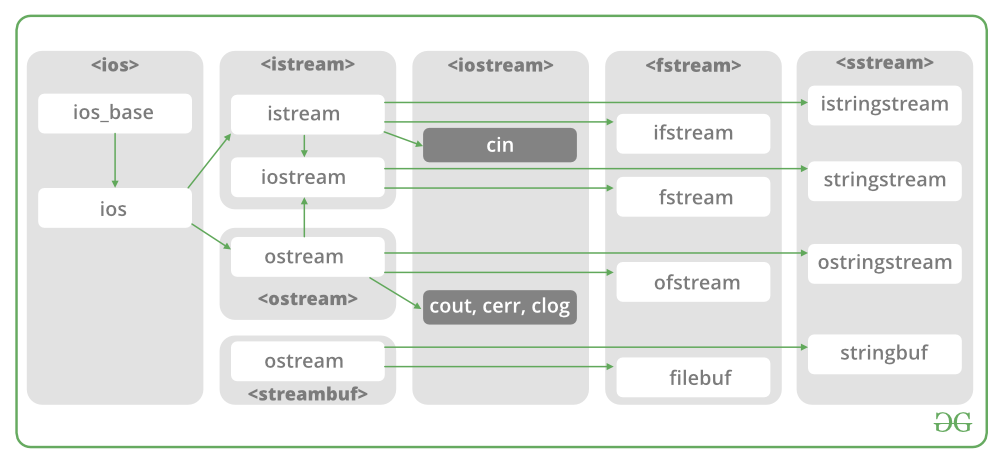
In C++, files are mainly dealt by using three classes fstream, ifstream, ofstream available in fstream headerfile.
ofstream: Stream class to write on files
ifstream: Stream class to read from files
fstream: Stream class to both read and write from/to files.

Now the first step to open the particular file for read or write operation. We can open file by
1. passing file name in constructor at the time of object creation
2. using the open method
For e.g.

Open File by using constructor
ifstream (const char* filename, ios_base::openmode mode = ios_base::in);
ifstream fin(filename, openmode) by default openmode = ios::in
ifstream fin(“filename”);

Open File by using open method
Calling of default constructor
ifstream fin;

fin.open(filename, openmode)
fin.open(“filename”);

Modes :

MEMBER CONSTANTSTANDS FORACCESS
in *inputFile open for reading: the internal stream buffer supports input operations.
outoutputFile open for writing: the internal stream buffer supports output operations.
binarybinaryOperations are performed in binary mode rather than text.
ateat endThe output position starts at the end of the file.
appappendAll output operations happen at the end of the file, appending to its existing contents.
trunctruncateAny contents that existed in the file before it is open are discarded.

Default Open Modes :

ifstreamios::in
ofstreamios::out
fstreamios::in | ios::out

Below is the implementation by using fstream class.:

/* File Handling with C++ using ifstream & ofstream class object*/
/* To write the Content in File*/
/* Then to read the content of file*
#include <iostream>
/* fstream header file for ifstream, ofstream,  
fstream classes */
#include <fstream> 
using namespace std;

// Creation of ofstream class object
int main()
string line; 
ofstream fout;
// by default ios::out mode, automatically deletes 
// the content of file. To append the content, open in ios:app 
// fout.open("sample.txt", ios::app) 
fout.open("sample.txt"); 

// Execute a loop If file successfully opened 
while (fout) { 

    // Read a Line from standard input 
    getline(cin, line); 

    // Press -1 to exit 
    if (line == "-1") 
        break; 

    // Write line in file 
    fout << line << endl; 
} 

// Close the File 
fout.close(); 

// Creation of ifstream class object to read the file 
ifstream fin; 

// by default open mode = ios::in mode 
fin.open("sample.txt"); 

// Execute a loop until EOF (End of File) 
while (fin) { 

    // Read a Line from File 
    getline(fin, line); 

    // Print line in Console 
    cout << line << endl; 
} 

// Close the file 
fin.close(); 

return 0; 

C++ exception handling basics

Exception handling in C++ is a way to respond to runtime errors without mixing error logic directly into every normal code path. When used carefully, exceptions help separate the main flow of a program from exceptional failure cases.

The Basic Mechanism

C++ exception handling is built around three keywords:

  • try for code that may fail,
  • throw for signaling an error,
  • catch for handling the error.
#include <iostream>
#include <stdexcept>
using namespace std;

int divide(int a, int b) {
    if (b == 0) {
        throw runtime_error("Division by zero");
    }
    return a / b;
}

int main() {
    try {
        cout << divide(10, 2) << endl;
    } catch (const exception& e) {
        cout << "Error: " << e.what() << endl;
    }
}

Why Exceptions Exist

Without exceptions, code often becomes full of repeated error checks. Exceptions let you report failure from deep inside a call stack and handle it at a higher level where the program can make a sensible decision.

Good Practices

  • Throw meaningful exception types.
  • Catch by reference, especially for standard exceptions.
  • Use exceptions for exceptional situations, not routine control flow.
  • Write code that remains resource-safe if an exception occurs.

Resource Safety and RAII

One of the reasons RAII is so important in C++ is that destructors still run during stack unwinding. That makes smart pointers and scoped resource management essential companions to exception-safe code.

Final Thoughts

Exception handling is not only about avoiding crashes. It is about making error handling explicit, maintainable, and safer. Used with discipline, it helps C++ programs fail in cleaner and more understandable ways.

C++ constructors and destructors

What is constructor? 
A constructor is a member function of a class which initializes objects of a class. In C++, Constructor is automatically called when object(instance of class) create. It is special member function of the class.
How constructors are different from a normal member function?

A constructor is different from normal functions in following ways: 

  • Constructor has same name as the class itself
  • Constructors don’t have return type
  • A constructor is automatically called when an object is created.
  • If we do not specify a constructor, C++ compiler generates a default constructor for us (expects no parameters and has an empty body).

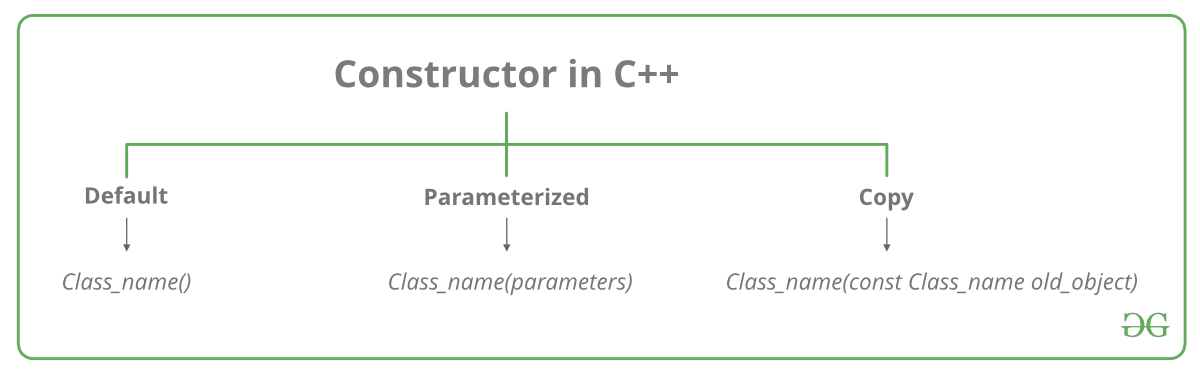
Let us understand the types of constructors in C++ by taking a real-world example. Suppose you went to a shop to buy a marker. When you want to buy a marker, what are the options? The first one you go to a shop and say give me a marker. So just saying give me a marker mean that you did not set which brand name and which color, you didn’t mention anything just say you want a marker. So when we said just I want a marker so whatever the frequently sold marker is there in the market or in his shop he will simply hand over that. And this is what a default constructor is! The second method you go to a shop and say I want a marker a red in color and XYZ brand. So you are mentioning this and he will give you that marker. So in this case you have given the parameters. And this is what a parameterized constructor is! Then the third one you go to a shop and say I want a marker like this(a physical marker on your hand). So the shopkeeper will see that marker. Okay, and he will give a new marker for you. So copy of that marker. And that’s what copy constructor is!
Types of Constructors

  1. Default Constructors: Default constructor is the constructor which doesn’t take any argument. It has no parameters.

// Cpp program to illustrate the
// concept of Constructors

include using namespace std; class construct { public: int a, b; // Default Constructor construct() { a = 10; b = 20; } }; int main() { // Default constructor called automatically // when the object is created

C++ object-oriented programming basics

What are the main principles of Object-Oriented Programming?

The four principles of object-oriented programming are encapsulationabstractioninheritance,and polymorphism.

These words may sound scary for a junior developer. And the complex, excessively long explanations in Wikipedia sometimes double the confusion.

That’s why I want to give a simple, short, and clear explanation for each of these concepts. It may sound like something you explain to a child, but I would actually love to hear these answers when I conduct an interview.

Encapsulation

Say we have a program. It has a few logically different objects which communicate with each other — according to the rules defined in the program.

Encapsulation is achieved when each object keeps its state private, inside a class. Other objects don’t have direct access to this state. Instead, they can only call a list of public functions — called methods.

So, the object manages its own state via methods — and no other class can touch it unless explicitly allowed. If you want to communicate with the object, you should use the methods provided. But (by default), you can’t change the state.

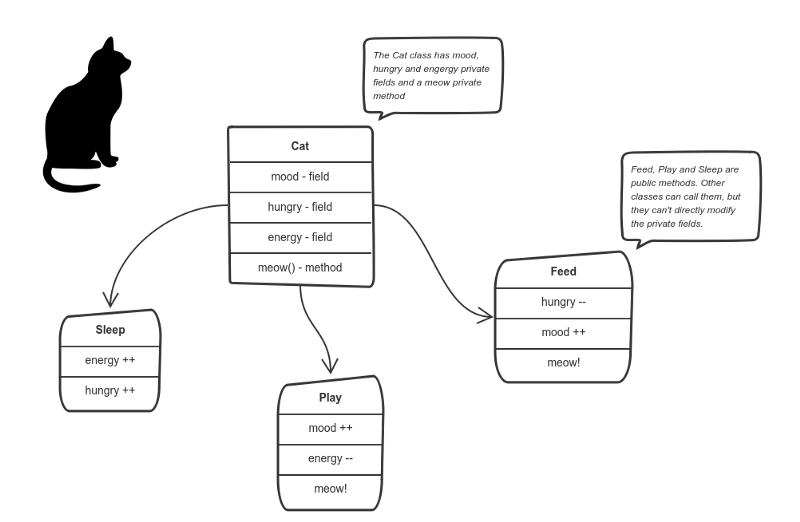
Let’s say we’re building a tiny Sims game. There are people and there is a cat. They communicate with each other. We want to apply encapsulation, so we encapsulate all “cat” logic into a Catclass. It may look like this:

You can feed the cat. But you can’t directly change how hungry the cat is.

Here the “state” of the cat is the private variables moodhungry and energy. It also has a private method meow()It can call it whenever it wants, the other classes can’t tell the cat when to meow.

What they can do is defined in the public methods sleep()play() and feed()Each of them modifies the internal state somehow and may invoke meow()Thus, the binding between the private state and public methods is made.

This is encapsulation.

Abstraction

Abstraction can be thought of as a natural extension of encapsulation.

In object-oriented design, programs are often extremely large. And separate objects communicate with each other a lot. So maintaining a large codebase like this for years — with changes along the way — is difficult.

Abstraction is a concept aiming to ease this problem.

Applying abstraction means that each object should only expose a high-level mechanism for using it.

This mechanism should hide internal implementation details. It should only reveal operations relevant for the other objects.

Think — a coffee machine. It does a lot of stuff and makes quirky noises under the hood. But all you have to do is put in coffee and press a button.

Preferably, this mechanism should be easy to use and should rarely change over time. Think of it as a small set of public methods which any other class can call without “knowing” how they work.

Another real-life example of abstraction?
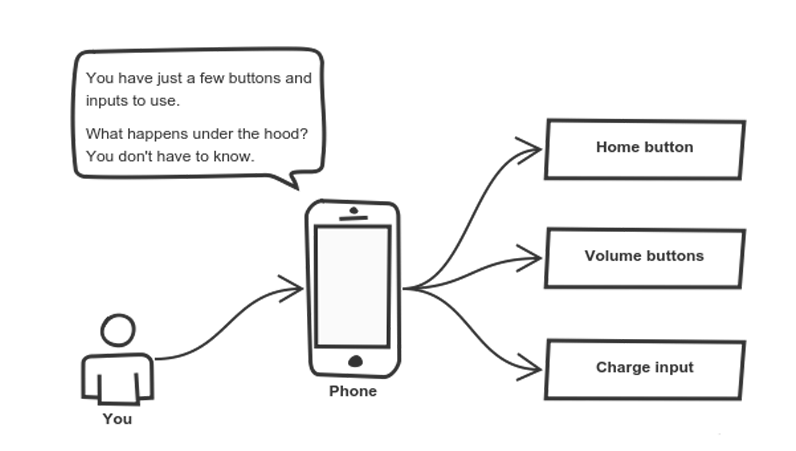
Think about how you use your phone:

Cell phones are complex. But using them is simple.

You interact with your phone by using only a few buttons. What’s going on under the hood? You don’t have to know — implementation details are hidden. You only need to know a short set of actions.

Implementation changes — for example, a software update — rarely affect the abstraction you use.

Inheritance

OK, we saw how encapsulation and abstraction can help us develop and maintain a big codebase.

But do you know what is another common problem in OOP design?

Objects are often very similar. They share common logic. But they’re not entirely the same. Ugh…

So how do we reuse the common logic and extract the unique logic into a separate class? One way to achieve this is inheritance.

It means that you create a (child) class by deriving from another (parent) class. This way, we form a hierarchy.

The child class reuses all fields and methods of the parent class (common part) and can implement its own (unique part).

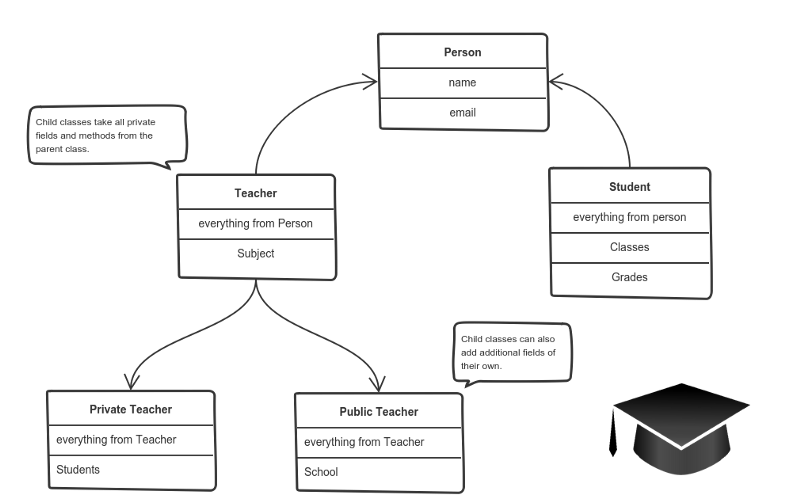
For example:

A private teacher is a type of teacher. And any teacher is a type of Person.

If our program needs to manage public and private teachers, but also other types of people like students, we can implement this class hierarchy.

This way, each class adds only what is necessary for it while reusing common logic with the parent classes.

Polymorphism

We’re down to the most complex word! Polymorphism means “many shapes” in Greek.

So we already know the power of inheritance and happily use it. But there comes this problem.

Say we have a parent class and a few child classes which inherit from it. Sometimes we want to use a collection — for example a list — which contains a mix of all these classes. Or we have a method implemented for the parent class — but we’d like to use it for the children, too.

This can be solved by using polymorphism.

Simply put, polymorphism gives a way to use a class exactly like its parent so there’s no confusion with mixing types.But each child class keeps its own methods as they are.

This typically happens by defining a (parent) interface to be reused. It outlines a bunch of common methods. Then, each child class implements its own version of these methods.

Any time a collection (such as a list) or a method expects an instance of the parent (where common methods are outlined), the language takes care of evaluating the right implementation of the common method — regardless of which child is passed.

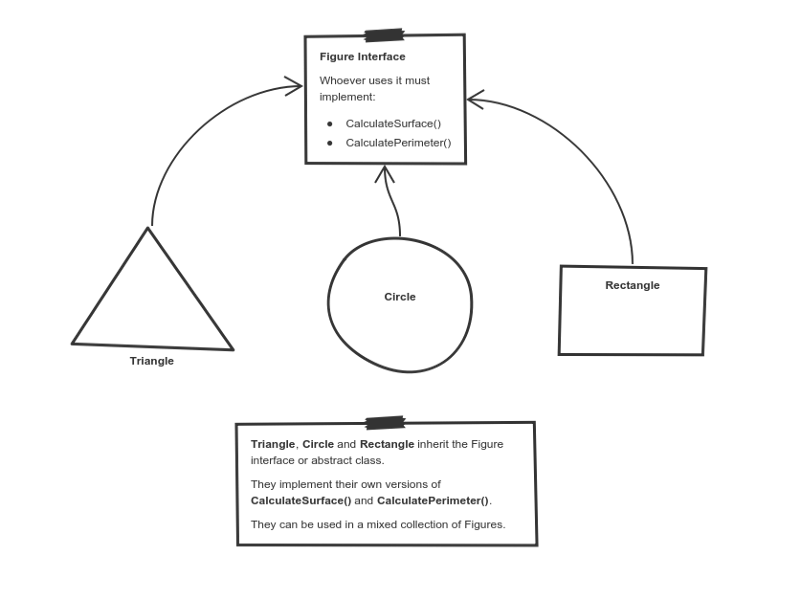
Take a look at a sketch of geometric figures implementation. They reuse a common interface for calculating surface area and perimeter:

Triangle, Circle, and Rectangle now can be used in the same collection

Having these three figures inheriting the parent Figure Interface lets you create a list of mixed trianglescircles, and rectangles. And treat them like the same type of object.

Then, if this list attempts to calculate the surface for an element, the correct method is found and executed. If the element is a triangle, triangle’s CalculateSurface()is called. If it’s a circle — then cirlce’s CalculateSurface()is called. And so on.

If you have a function which operates with a figure by using its parameter, you don’t have to define it three times — once for a triangle, a circle, and a rectangle.

You can define it once and accept a Figureas an argument. Whether you pass a triangle, circle or a rectangle — as long as they implement CalculateParamter(), their type doesn’t matter.

I hope this helped. You can directly use these exact same explanations at job interviews.

If you find something still difficult to understand — don’t hesitate to ask in the comments below.

What’s next?

Being prepared to answer one of the all-time interview question classics is great — but sometimes you never get called for an interview.

Next, I’ll focus on what employers want to see in a junior developer and how to stand out from the crowd when job hunting.

Stay tuned.

C++ pointers and references

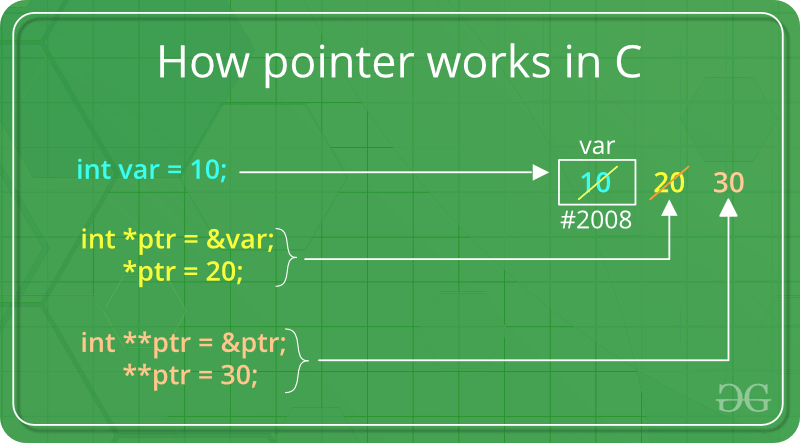
Pointers store address of variables or a memory location.

// General syntax
datatype *var_name; 

// An example pointer "ptr" that holds
// address of an integer variable or holds
// address of a memory whose value(s) can
// be accessed as integer values through "ptr"
int *ptr;  

Using a Pointer:

To use pointers in C, we must understand below two operators.

  • To access address of a variable to a pointer, we use the unary operator (ampersand) that returns the address of that variable. For example &x gives us address of variable x.
// The output of this program can be different 
// in different runs. Note that the program 
// prints address of a variable and a variable 
// can be assigned different address in different 
// runs. 
#include <stdio.h> 

int main() 
// Prints address of x 
printf("%p", &x); 

return 0; 
}
  • One more operator is unary * (Asterisk) which is used for two things :
    • To declare a pointer variable: When a pointer variable is declared in C/C++, there must be a * before its name.
// C program to demonstrate declaration of 
// pointer variables. 
#include <stdio.h> 
int main() 
{ 
    int x = 10; 
// 1) Since there is * in declaration, ptr 
// becomes a pointer varaible (a variable 
// that stores address of another variable) 
// 2) Since there is int before *, ptr is 
// pointer to an integer type variable 
int *ptr; 

// & operator before x is used to get address 
// of x. The address of x is assigned to ptr. 
ptr = &x; 

return 0; 
}
  • To access the value stored in the address we use the unary operator (*) that returns the value of the variable located at the address specified by its operand. This is also called Dereferencing.

C++ functions that matter

Functions are one of the most important building blocks in C++. They help us organize logic, reduce duplication, and make code easier to understand. Without functions, even small programs become long, repetitive, and difficult to maintain.

What a Function Does

A function groups a piece of logic under a meaningful name. Instead of rewriting the same steps repeatedly, you define the logic once and call it whenever you need it.

#include <iostream>
using namespace std;

int add(int a, int b) {
    return a + b;
}

int main() {
    cout << add(2, 3) << endl;
    return 0;
}

Why Functions Improve Code Quality

  • They reduce repeated code.
  • They make programs easier to test.
  • They improve readability when names are clear.
  • They let you separate high-level intent from implementation detail.

Parameters and Return Values

Parameters let a function receive input. The return value sends a result back to the caller. Together, they make functions flexible and reusable.

Pass by Value vs Pass by Reference

In C++, this distinction matters for both performance and correctness.

  • Pass by value copies the argument.
  • Pass by reference lets the function work directly with the original object.
void increment(int& value) {
    value++;
}

Function Overloading

C++ allows multiple functions with the same name as long as their parameter lists differ. This is called function overloading.

int multiply(int a, int b) {
    return a * b;
}

double multiply(double a, double b) {
    return a * b;
}

Final Thoughts

Good C++ code depends heavily on good function design. Clear function boundaries make larger programs easier to reason about, and that matters whether you are writing a small utility or a large production system.