Các lựa chọn container trên AWS

Khi bước vào hệ sinh thái container trên AWS, người mới rất dễ bị ngợp vì quá nhiều tên dịch vụ xuất hiện cùng lúc: ECS, EKS, Fargate, ECR. Video của TechWorld with Nana làm rất tốt một việc quan trọng, đó là đặt các mảnh ghép này cạnh nhau để thấy chúng không phải các công cụ hoàn toàn tách biệt, mà là các lựa chọn giải quyết những phần khác nhau của bài toán container.

Bài viết này viết lại các ý chính theo cách ngắn gọn, rõ ràng và thực dụng hơn cho người học DevOps bằng tiếng Việt.

Bạn sẽ học được gì

  • ECR, ECS, EKS và Fargate khác nhau ở điểm nào
  • dịch vụ nào quản lý image, dịch vụ nào quản lý workload
  • khi nào nên dùng ECS thay vì EKS
  • vai trò của Fargate trong mô hình serverless cho container
  • cách ghép các dịch vụ này vào một flow triển khai thực tế

Bức tranh lớn trước khi đi vào từng dịch vụ

Trước tiên cần tách bài toán container trên AWS thành hai lớp. Lớp thứ nhất là nơi bạn lưu image. Lớp thứ hai là nơi bạn chạy workload. Nhiều người mới học lẫn hai lớp này với nhau nên cảm thấy mọi thứ rối hơn mức cần thiết.

ECR nằm ở lớp lưu trữ image. ECS và EKS nằm ở lớp điều phối workload. Fargate là cách chạy workload mà bạn không phải trực tiếp quản lý server cho phần compute đó.

ECR: nơi lưu image

ECR là Elastic Container Registry. Hãy nghĩ đơn giản đây là kho chứa image Docker hoặc OCI image trong hệ sinh thái AWS. Khi bạn build một image cho ứng dụng, ECR là nơi rất tự nhiên để đẩy image lên trước khi cho ECS hoặc EKS kéo về chạy.

Nếu team đã dùng AWS nhiều, ECR thường là lựa chọn thuận tay vì quyền truy cập, tích hợp và quy trình đẩy image có thể gắn chặt với pipeline sẵn có.

ECS: điều phối container theo cách đơn giản hơn

ECS là Elastic Container Service. So với EKS, ECS thường dễ tiếp cận hơn cho team chỉ muốn chạy container trên AWS mà chưa cần sức mạnh và độ linh hoạt của Kubernetes. Bạn không phải học toàn bộ mô hình object của Kubernetes, nhưng vẫn có một hệ thống điều phối để chạy, scale và cập nhật container.

Điểm mạnh của ECS là gần với hệ sinh thái AWS, ít khái niệm hơn, và thường phù hợp với team muốn đi nhanh. Điểm đổi lại là ECS ít portable hơn Kubernetes nếu sau này bạn muốn đa cloud hoặc chuyển nền tảng.

EKS: khi bạn cần Kubernetes

EKS là lựa chọn khi bạn muốn chuẩn Kubernetes, cần một mô hình orchestration phổ biến hơn trong thị trường, hoặc muốn nền tảng dễ gắn với tooling Kubernetes rộng lớn hơn. EKS mạnh hơn về mặt tiêu chuẩn và hệ sinh thái, nhưng cũng đòi hỏi nhiều kiến thức hơn.

Nếu bài toán của bạn là “chạy container ổn, đơn giản, nhanh trên AWS”, ECS có thể đủ. Nếu bài toán là “xây nền tảng Kubernetes nghiêm túc”, EKS mới là câu trả lời hợp lý hơn.

Fargate: lớp compute ít phải quản server

Fargate không phải registry và cũng không phải một orchestrator độc lập như ECS hay EKS. Nó là mô hình compute để chạy container mà bạn không phải quản EC2 instance ở mức thông thường. Điều này giúp giảm phần việc quản lý máy chủ, vá hệ điều hành và một số tác vụ vận hành hạ tầng.

Fargate rất hấp dẫn cho những workload vừa và nhỏ, workload theo sự kiện hoặc team muốn giảm mạnh phần vận hành node. Tuy nhiên nó không phải lúc nào cũng rẻ hoặc phù hợp cho mọi kiểu tải lớn.

Một cách ghép dễ nhớ

  • ECR để lưu image
  • ECS hoặc EKS để điều phối workload
  • Fargate để cung cấp compute mà bạn ít phải lo server hơn

Ví dụ, một team có thể build image, đẩy lên ECR, sau đó chạy ứng dụng qua ECS trên Fargate. Một team khác có thể đẩy image lên ECR rồi deploy qua EKS vì họ cần Kubernetes.

Những sai lầm thường gặp

  • nghĩ rằng ECS, EKS, Fargate và ECR là bốn dịch vụ cạnh tranh trực tiếp với nhau
  • chọn EKS chỉ vì thấy Kubernetes đang phổ biến mà chưa rõ nhu cầu thật
  • chọn Fargate nhưng không theo dõi chi phí khi workload tăng đều
  • không tách rõ nơi lưu image với nơi chạy container

Tóm tắt nhanh

  • ECR là nơi lưu image container.
  • ECS và EKS là hai cách điều phối workload container trên AWS.
  • Fargate là mô hình compute ít phải quản server hơn.
  • Lựa chọn đúng phụ thuộc vào độ phức tạp, nhu cầu tiêu chuẩn hóa và khả năng vận hành của team.

Đọc tiếp

Nguồn tham khảo

Ros 2 in docker

Running ROS 2 in Docker is a practical way to make robotics development more reproducible. Robotics projects often depend on specific Ubuntu versions, DDS settings, package combinations, and middleware behavior. Containers help reduce the classic “it works on my machine” problem.

Why ROS 2 and Docker Work Well Together

  • You can standardize the development environment across machines.
  • You can onboard collaborators faster.
  • You can test builds in CI using the same container image.
  • You can isolate dependencies for multiple robotics projects.

A Basic ROS 2 Dockerfile

FROM ros:humble
WORKDIR /ws
RUN apt-get update && apt-get install -y     python3-colcon-common-extensions     && rm -rf /var/lib/apt/lists/*
COPY . /ws
RUN . /opt/ros/humble/setup.sh && colcon build
CMD ["bash"]

This is only a starting point, but it shows the general pattern: start from a ROS base image, install required tools, copy the workspace, and build it.

Practical Challenges

Robotics containers are not always as simple as web application containers. You may also need to think about:

  • GUI forwarding for RViz or Gazebo,
  • access to USB devices and sensors,
  • network configuration for DDS discovery,
  • volume mounts for source code and logs.

A Useful Development Workflow

  1. Keep the source code mounted into the container during development.
  2. Use a stable base image for the ROS distribution.
  3. Separate frequently changing code from slower-changing dependencies to speed up rebuilds.
  4. Use Docker Compose or scripts to simplify multi-container robotics setups.

Final Thoughts

Docker is not a magic answer for robotics, but it is extremely helpful for reproducibility. When combined with ROS 2, it gives teams a cleaner and more portable development workflow, especially when projects grow beyond one machine or one engineer.

Docker and kubernetes helm repositories

Creating a Helm chart repository

In this post, we’ll learn how to create and work with Helm chart repositories.

A chart repository is an HTTP server that houses an index.yaml file and optionally some packaged charts. Because a chart repository can be any HTTP server that can serve YAML and tar files and can answer GET requests, we have a plethora of options when it comes down to hosting our own chart repository. For example, we can use a Google Cloud Storage (GCS) bucket, Amazon S3 bucket, GitHub Pages, or even create our own web server.

Once the charts are ready and we need to share them, the easiest way to do so is by uploading them to a chart repository. However, Helm does not come with a chart repository while Helm can serve the local repository via “helm serve”.

Github Pages

We can create charts repository using GitHub Pages. It allows us to serve static web pages.

All we need is to host a single index.yaml file along with a bunch of .tgz files.

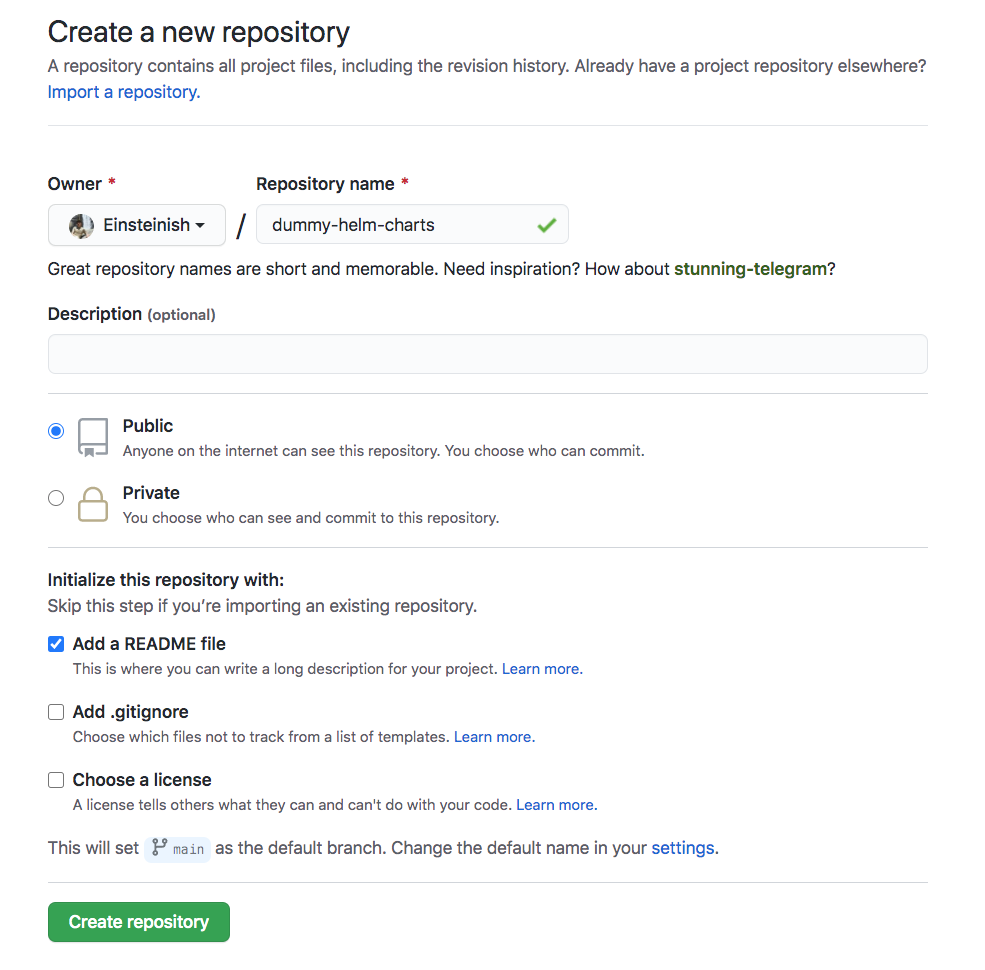
Create a new Github repositoryCreate-a-new-Github-Repo.png

Though it’s empty repo, let’s just clone it for now:

$ git clone https://github.com/Einsteinish/dummy-helm-charts.git    

Create a helm chart

We need to have the Helm CLI installed and initialized:

$ helm version
Client: &version.Version{SemVer:"v2.16.10", GitCommit:"bceca24a91639f045f22ab0f41e47589a932cf5e", GitTreeState:"clean"}
Server: &version.Version{SemVer:"v2.16.10", GitCommit:"bceca24a91639f045f22ab0f41e47589a932cf5e", GitTreeState:"clean"}

$ helm3 version
version.BuildInfo{Version:"v3.3.1", GitCommit:"249e5215cde0c3fa72e27eb7a30e8d55c9696144", GitTreeState:"dirty", GoVersion:"go1.15"}    

We’re going to use the directory ./sources/ for the sources of our charts. We need to create charts and copy them into the ./sources/:

$ cd dummy-helm-charts/
$ mkdir sources  

$ tree
.
└── dummy-helm-charts
    ├── README.md
    └── sources
    
$ helm create sources/dummy-chart
Creating sources/dummy-chart

$ tree
.
├── README.md
└── sources
    └── dummy-chart
        ├── Chart.yaml
        ├── charts
        ├── templates
        │   ├── NOTES.txt
        │   ├── _helpers.tpl
        │   ├── deployment.yaml
        │   ├── ingress.yaml
        │   ├── service.yaml
        │   ├── serviceaccount.yaml
        │   └── tests
        │       └── test-connection.yaml
        └── values.yaml
        
$ helm lint sources/*
==> Linting sources/dummy-chart
[INFO] Chart.yaml: icon is recommended

1 chart(s) linted, no failures

Create the Helm chart package

$ helm package sources/*
Successfully packaged chart and saved it to: 
/Users/kihyuckhong/Documents/Minikube/Helm/DUMMY/dummy-helm-charts/dummy-chart-0.1.0.tgz

Create the repository index

A chart repository is an HTTP server that houses an index.yaml file.

The index file contains information about each chart and provides the download URL, for example, https://example.com/charts/alpine-0.1.2.tgz for that chart.

The index file is a yaml file called index.yaml. It contains some metadata about the package, including the contents of a chart’s Chart.yaml file. A valid chart repository must have an index file. The helm repo index command will generate an index file based on a given local directory that contains packaged charts.

$ helm repo index --url https://einsteinish.github.io/helm-chart/ . 

$ tree
.
├── README.md
├── dummy-chart-0.1.0.tgz
├── index.yaml
└── sources
    └── dummy-chart
        ├── Chart.yaml
        ├── charts
        ├── templates
        │   ├── NOTES.txt
        │   ├── _helpers.tpl
        │   ├── deployment.yaml
        │   ├── ingress.yaml
        │   ├── service.yaml
        │   ├── serviceaccount.yaml
        │   └── tests
        │       └── test-connection.yaml
        └── values.yaml


$ cat index.yaml
apiVersion: v1
entries:
  dummy-chart:
  - apiVersion: v1
    appVersion: "1.0"
    created: "2020-10-22T13:11:36.940863-07:00"
    description: A Helm chart for Kubernetes
    digest: c8d82f24fc29d40693a608a1fd8db1c2596a8325ecae62529502a1cbae8677a2
    name: dummy-chart
    urls:
    - https://einsteinish.github.io/helm-chart/dummy-chart-0.1.0.tgz
    version: 0.1.0
generated: "2020-10-22T13:11:36.935738-07:00"

Pushing to Github repository

$ git add .

$ git commit -m "initial commit"
[main 4006e22] initial commit
 12 files changed, 322 insertions(+)
 create mode 100644 dummy-chart-0.1.0.tgz
 create mode 100644 index.yaml
 create mode 100644 sources/dummy-chart/.helmignore
 create mode 100644 sources/dummy-chart/Chart.yaml
 create mode 100644 sources/dummy-chart/templates/NOTES.txt
 create mode 100644 sources/dummy-chart/templates/_helpers.tpl
 create mode 100644 sources/dummy-chart/templates/deployment.yaml
 create mode 100644 sources/dummy-chart/templates/ingress.yaml
 create mode 100644 sources/dummy-chart/templates/service.yaml
 create mode 100644 sources/dummy-chart/templates/serviceaccount.yaml
 create mode 100644 sources/dummy-chart/templates/tests/test-connection.yaml
 create mode 100644 sources/dummy-chart/values.yaml

$ git push origin main
...
To https://github.com/Einsteinish/dummy-helm-charts.git
   9d23dff..4006e22  main -> main    

Setting up Github Pages as a helm chart repository

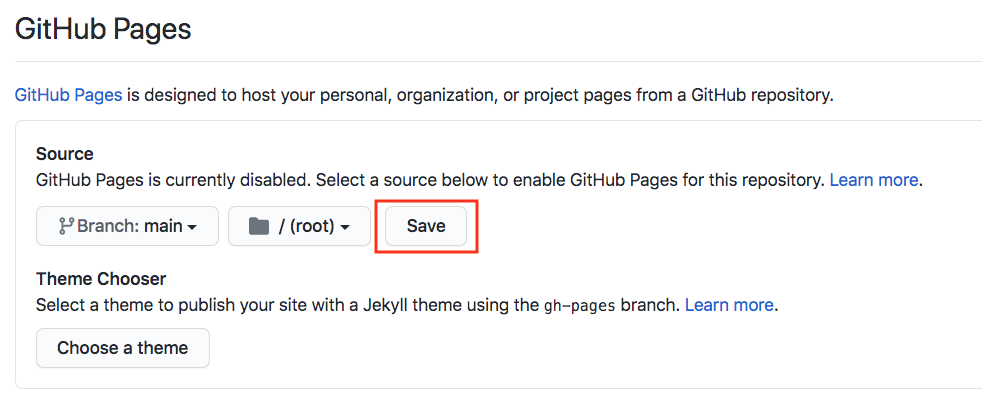
From “settings” of git repository, scroll down to Github Pages section and configure it as follow:Github-Pages-save.png

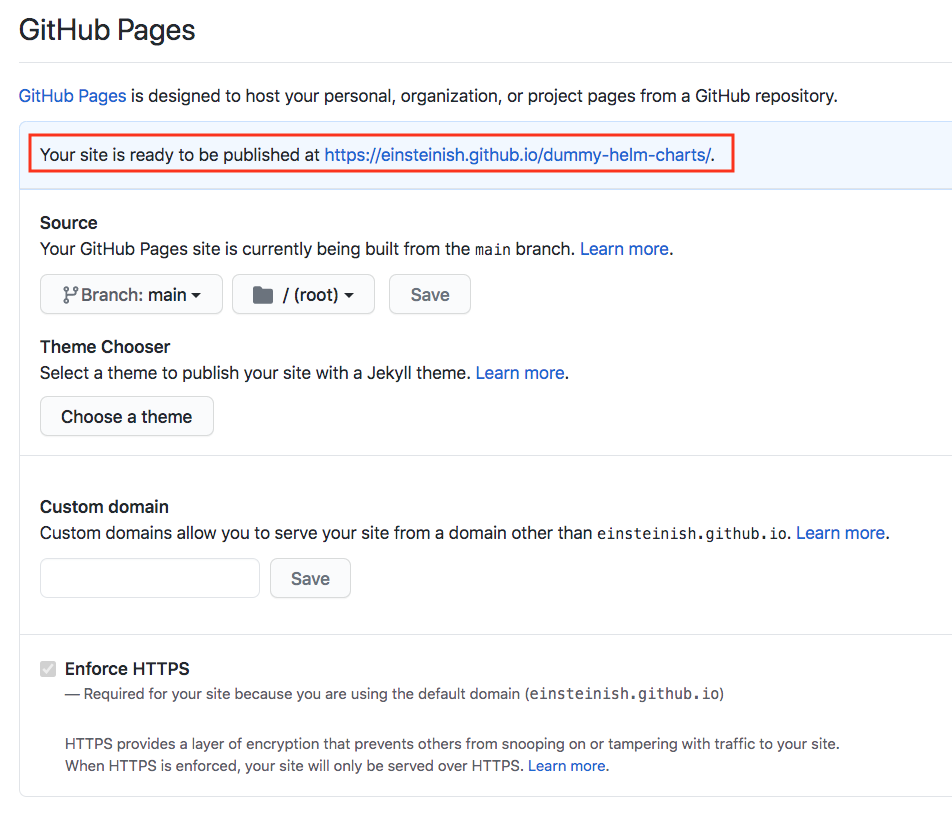
Click “Save”:Github-Pages-saved.png

Helm client configuration

To use the charts on the repository, we need to configure their own Helm client using helm repo command:

$ helm repo add dummy https://einsteinish.github.io/dummy-helm-charts
"dummy" has been added to your repositories
~/Documents/Minikube/Helm/DUMMY/dummy-helm-charts $ helm repo list
NAME  	URL                                             
stable	https://kubernetes-charts.storage.googleapis.com
local 	http://127.0.0.1:8879/charts                    
dummy 	https://einsteinish.github.io/dummy-helm-charts

$ helm search dummy
NAME             	CHART VERSION	APP VERSION	DESCRIPTION                
dummy/dummy-chart	0.1.0        	1.0        	A Helm chart for Kubernetes
local/dummy-chart	0.1.0        	1.0        	A Helm chart for Kubernetes

Chart repository updates

Whenever we want to add a new chart to the Helm chart repository, we should regenerate the index.yaml file. The helm repo index command will rebuild the index.yaml file including only the charts that it finds locally. Note that we can use the –merge flag to incrementally add new charts to an existing index.yaml:

$ helm repo index --url https://einsteinish.github.io/dummy-helm-charts/ --merge index

Docker run command tips

Docker run command

The basic syntax for the Docker run command looks like this:

k@laptop:~$ docker run --help
Usage: docker run [OPTIONS] IMAGE [COMMAND] [ARG...]
Run a command in a new container

We’re going to use very tiny linux distribution called busybox which has several stripped-down Unix tools in a single executable file and runs in a variety of POSIX environments such as Linux, Android, FreeBSD, etc. It’s going to execute a shell command in a newly created container, then it will put us on a shell prompt:

k@laptop:~$ docker run -it busybox sh
/ # echo 'bogotobogo'
bogotobogo
/ # exit
k@laptop:~$

The docker ps shows us containers:

k@laptop:~$ docker ps
CONTAINER ID        IMAGE               COMMAND             CREATED             STATUS              PORTS               NAMES

But right now, we don’t have any containers running. If we use docker ps -a, it will display all containers even if it’s not running:

k@laptop:~$ docker ps -a
CONTAINER ID        IMAGE               COMMAND             CREATED             STATUS                      PORTS               NAMES
4d673944ec59        busybox:latest      "sh"                13 minutes ago      Exited (0) 12 minutes ago                       trusting_mccarthy   

When we execute run command, it will create a new container and execute a command within that container. The container will remain until it is explicitly deleted. We can restart the container:

k@laptop:~$ docker restart 4d673944ec59
4d673944ec59   

We can attach to that container. The usage looks like this:

docker attach [OPTIONS] CONTAINER

Let’s attach to the container. It will put us back on the shell where we were before:

k@laptop:~$ docker attach 4d673944ec59

/ # ls
bin      etc      lib      linuxrc  mnt      proc     run      sys      usr
dev      home     lib64    media    opt      root     sbin     tmp      var
/ # exit

The docker attach command allows us to attach to a running container using the container’s ID or name, either to view its ongoing output or to control it interactively.

Now, we know that a container can be restarted, attached, or even be killed!

k@laptop:~$ docker ps -a
CONTAINER ID        IMAGE               COMMAND             CREATED             STATUS                          PORTS               NAMES
4d673944ec59        busybox:latest      "sh"                21 minutes ago      Exited (0) About a minute ago                       trusting_mccarthy  

But the one thing we can’t do changing the command that’s been executed. So, once we have created a container and it has a command associated with it, that command will always get run when we restart the container. We can restart and attached to it because it has shell command. But if we’re running something else, like an echo command:

k@laptop:~$ docker run -it busybox echo 'bogotobogo'
bogotobogo

Now, we’ve created another container which does echo:

k@laptop:~$ docker ps -a
CONTAINER ID        IMAGE               COMMAND             CREATED              STATUS                          PORTS               NAMES
849975841b4e        busybox:latest      "echo bogotobogo"   About a minute ago   Exited (0) About a minute ago                       elegant_goldstine   
4d673944ec59        busybox:latest      "sh"                29 minutes ago       Exited (0) 9 minutes ago                            trusting_mccarthy

It executed “echo bogotobogo”, and then exited. But it still hanging around. Even if we restart it:

k@laptop:~$ docker restart 849975841b4e
849975841b4e

It run in background and we don’t see any output. All it did “echo bogotobogo” again. I can remove this container:

k@laptop:~$ docker rm 849975841b4e
849975841b4e

Now it’s been removed from our list of containers:

k@laptop:~$ docker ps -a
CONTAINER ID        IMAGE               COMMAND             CREATED             STATUS                      PORTS               NAMES
4d673944ec59        busybox:latest      "sh"                35 minutes ago      Exited (0) 14 minutes ago                       trusting_mccarthy   

We want this one to be removed as well:

k@laptop:~$ docker rm 4d673944ec59
4d673944ec59
k@laptop:~$ docker ps -a
CONTAINER ID        IMAGE               COMMAND             CREATED             STATUS              PORTS               NAMES
k@laptop:~$ 

docker run -it

Let’s look at the -it in docker run -it.

k@laptop:~$ docker run --help

Usage: docker run [OPTIONS] IMAGE [COMMAND] [ARG...]

Run a command in a new container

  -i, --interactive=false    Keep STDIN open even if not attached

  -t, --tty=false            Allocate a pseudo-TTY
...

If we run with t:

k@laptop:~$ docker run -i busybox sh

ls
bin
dev
etc
home
lib
lib64
linuxrc
media
mnt
opt
proc
root
run
sbin
sys
tmp
usr
var

cd home

cd /home

ls
default
ftp

exit
k@laptop:~$

It is interactive mode, and we can do whatever we want: “ls”, “cd /home” etc, however, it does not give us console, tty.

If we issue the docker run with just t:

k@laptop:~$ docker run -t busybox sh
/ #

We get a terminal we can work on. But we can’t do anything because it cannot get any input from us. We can execute anything since it’s not getting what we’re passing in.

k@laptop:~$ docker ps -a
CONTAINER ID        IMAGE               COMMAND             CREATED              STATUS                        PORTS               NAMES
3bcaa1d57ac0        busybox:latest      "sh"                15 seconds ago       Up 14 seconds                                     dreamy_yonath           
ac53c2a81ebe        busybox:latest      "sh"                About a minute ago   Exited (127) 55 seconds ago                       condescending_galileo   
497be20f5d7e        busybox:latest      "sh"                3 minutes ago        Exited (-1) 2 minutes ago                         nostalgic_wilson  

Docker run –rm

We need to kill the container run with only “t”:

      
k@laptop:~$ docker kill 3bcaa1d57ac0
3bcaa1d57ac0

k@laptop:~$ docker ps -a
CONTAINER ID        IMAGE               COMMAND             CREATED             STATUS                       PORTS               NAMES
3bcaa1d57ac0        busybox:latest      "sh"                3 minutes ago       Exited (-1) 2 minutes ago                        dreamy_yonath           
ac53c2a81ebe        busybox:latest      "sh"                3 minutes ago       Exited (127) 3 minutes ago                       condescending_galileo   
497be20f5d7e        busybox:latest      "sh"                6 minutes ago       Exited (-1) 4 minutes ago                        nostalgic_wilson        

Then, we want to remove all containers:

 
k@laptop:~$ docker rm $(docker ps -aq)
3bcaa1d57ac0
ac53c2a81ebe
497be20f5d7e

k@laptop:~$ docker ps -a
CONTAINER ID        IMAGE               COMMAND             CREATED             STATUS              PORTS               NAMES
k@laptop:~$ 

The argument q in docker ps -aq gives us id of all containers.

The next thing to do here is that we don’t want remove the containers every time we execute a shell command:

 
k@laptop:~$ docker run -it --rm busybox sh
/ # echo Hello
Hello
/ # exit

k@laptop:~$ docker ps -a
CONTAINER ID        IMAGE               COMMAND             CREATED             STATUS              PORTS               NAMES
k@laptop:~$ 

Notice that we don’t have any container. By passing in --rm, the container is automatically deleted once the container exited.

 
k@laptop:~$ docker run -it --rm busybox echo "I will not staying around forever"
I will not staying around forever
k@laptop:~$ docker ps -a
CONTAINER ID        IMAGE               COMMAND             CREATED             STATUS              PORTS               NAMES
k@laptop:~$ 

Docker rmi – deleting local images

To remove all images from our local machine:

k@laptop:~$ docker rmi $(docker images -q)

Saving container – docker commit

As we work with a container and continue to perform actions on it (install software, configure files etc.), to have it keep its state, we need to commit. Committing makes sure that everything continues from where they left next time.

Exit docker container:

root@f510d7bb05af:/# exit
exit

Then, we can save the image:

# Usage: sudo docker commit [container ID] [image name]
$ sudo docker commit f510d7bb05af my_image

Running CentOS on Ubuntu 14.04

As an exercise, we now want to run CentOS on Ubuntu 14.04.

Before running it, check if we have have any Docker container including running ones:

k@laptop:~$ docker ps
CONTAINER ID        IMAGE               COMMAND             CREATED             STATUS              PORTS               NAMES

OK. There is no running Docker. How about any exited containers:

k@laptop:~$ docker ps -a
CONTAINER ID        IMAGE               COMMAND             CREATED             STATUS              PORTS               NAMES

Nothings there!

Let’s search Docker registry:

k@laptop:~$ docker search centos
NAME                            DESCRIPTION                                     STARS     OFFICIAL   AUTOMATED
centos                          The official build of CentOS.                   1223      [OK]       
ansible/centos7-ansible         Ansible on Centos7                              50                   [OK]
jdeathe/centos-ssh-apache-php   CentOS-6 6.6 x86_64 / Apache / PHP / PHP m...   11                   [OK]
blalor/centos                   Bare-bones base CentOS 6.5 image                9                    [OK]
...

We can download the image using docker pull command. The command find the image by name on Docker Hub and download it from Docker Hub to a local image cache.

k@laptop:~$ docker pull centos
latest: Pulling from centos
c852f6d61e65: Pull complete 
7322fbe74aa5: Pull complete 
f1b10cd84249: Already exists 
Digest: sha256:90305c9112250c7e3746425477f1c4ef112b03b4abe78c612e092037bfecc3b7
Status: Downloaded newer image for centos:latest

Note that when the image is successfully downloaded, we see a 12 character hash: Download complete which is the short form of the image ID. These short image IDs are the first 12 characters of the full image ID – which can be found using docker inspect or docker images –no-trunc=true:

k@laptop:~$ docker inspect centos:latest
[
{
    "Id": "7322fbe74aa5632b33a400959867c8ac4290e9c5112877a7754be70cfe5d66e9",
    "Parent": "c852f6d61e65cddf1e8af1f6cd7db78543bfb83cdcd36845541cf6d9dfef20a0",
    "Comment": "",
    "Created": "2015-06-18T17:28:29.311137972Z",
    "Container": "d6b8ab6e62ce7fa9516cff5e3c83db40287dc61b5c229e0c190749b1fbaeba3f",
    "ContainerConfig": {
        "Hostname": "545cb0ebeb25",
        "Domainname": "",
        "User": "",
        "AttachStdin": false,
        "AttachStdout": false,
        "AttachStderr": false,
        "PortSpecs": null,
        "ExposedPorts": null,
        "Tty": false,
        "OpenStdin": false,
        "StdinOnce": false,
        "Env": null,
        "Cmd": [
            "/bin/sh",
            "-c",
            "#(nop) CMD [\"/bin/bash\"]"
        ],
        "Image": "c852f6d61e65cddf1e8af1f6cd7db78543bfb83cdcd36845541cf6d9dfef20a0",
        "Volumes": null,
        "VolumeDriver": "",
        "WorkingDir": "",
        "Entrypoint": null,
        "NetworkDisabled": false,
        "MacAddress": "",
        "OnBuild": null,
        "Labels": {}
    },
    "DockerVersion": "1.6.2",
    "Author": "The CentOS Project \u003ccloud-ops@centos.org\u003e - ami_creator",
    "Config": {
        "Hostname": "545cb0ebeb25",
        "Domainname": "",
        "User": "",
        "AttachStdin": false,
        "AttachStdout": false,
        "AttachStderr": false,
        "PortSpecs": null,
        "ExposedPorts": null,
        "Tty": false,
        "OpenStdin": false,
        "StdinOnce": false,
        "Env": null,
        "Cmd": [
            "/bin/bash"
        ],
        "Image": "c852f6d61e65cddf1e8af1f6cd7db78543bfb83cdcd36845541cf6d9dfef20a0",
        "Volumes": null,
        "VolumeDriver": "",
        "WorkingDir": "",
        "Entrypoint": null,
        "NetworkDisabled": false,
        "MacAddress": "",
        "OnBuild": null,
        "Labels": {}
    },
    "Architecture": "amd64",
    "Os": "linux",
    "Size": 0,
    "VirtualSize": 172237380
}
]

Or:

k@laptop:~$ docker images --no-trunc=true
REPOSITORY          TAG                 IMAGE ID                                                           CREATED             VIRTUAL SIZE
centos              latest              7322fbe74aa5632b33a400959867c8ac4290e9c5112877a7754be70cfe5d66e9   8 weeks ago         172.2 MB

k@laptop:~$ docker images --no-trunc=false

Or:

k@laptop:~$ docker images
REPOSITORY          TAG                 IMAGE ID            CREATED             VIRTUAL SIZE
centos              latest              7322fbe74aa5        8 weeks ago         172.2 MB

Let’s run Docker with the image:

k@laptop:~$ docker run -it centos:latest /bin/bash
[root@33b55acb4814 /]# 

Now, we are on CentOS. Let’s make a file, and then just exit:

[root@33b55acb4814 /]# cd /home

[root@33b55acb4814 home]# touch bogo.txt

[root@33b55acb4814 home]# ls
bogo.txt

[root@33b55acb4814 home]# exit
exit

k@laptop:~$

Check if there is any running container:

k@laptop:~$ docker ps 
CONTAINER ID        IMAGE               COMMAND             CREATED             STATUS              PORTS               NAMES

Nothings’ there. The docker ps command shows only the running containers. So, if we want to see all containers, we need to add -a flag to the command:

k@laptop:~$ docker ps -a
CONTAINER ID        IMAGE               COMMAND             CREATED             STATUS                      PORTS               NAMES
33b55acb4814        centos:latest       "/bin/bash"         2 minutes ago       Exited (0) 51 seconds ago                       grave_jang          

We do not have any Docker process that’s actively running. But we can restart the one that we’ve just exited from.

$ docker restart 33b55acb4814
33b55acb4814

k@laptop:~$ docker ps
CONTAINER ID        IMAGE               COMMAND             CREATED             STATUS              PORTS               NAMES
33b55acb4814        centos:latest       "/bin/bash"         4 minutes ago       Up 4 seconds                            grave_jang          

Note that the container is now running, and it actually executed the /bin/bash command.

We can go back to where we left by executing docker attach ContainerID command:

k@laptop:~$ docker attach 33b55acb4814

[root@33b55acb4814 /]# 

Now, we’re back. To make sure, we can check if there is the file we created:

[root@33b55acb4814 /]# cd /home
[root@33b55acb4814 home]# ls
bogo.txt

Why docker containers matter

Docker changed software delivery because it made applications portable, reproducible, and easier to deploy. Before containers became common, teams often struggled with environment mismatch: code worked on one machine but failed on another because dependencies, operating system packages, or runtime versions were different.

What a Container Is

A container packages an application together with its runtime dependencies so it can run consistently across environments. It is more lightweight than a full virtual machine because it shares the host kernel while still isolating processes and file systems.

Why Docker Became Popular

  • Developers and operations teams can share the same runtime artifact.
  • Images are versioned and reproducible.
  • CI/CD pipelines become easier to standardize.
  • Containers fit well with microservices and orchestration platforms.

Key Concepts

Images

An image is a template used to create containers. It contains the application, dependencies, and startup instructions.

Containers

A container is a running instance of an image.

Dockerfile

A Dockerfile defines how the image is built.

A Small Example

FROM python:3.11-slim
WORKDIR /app
COPY requirements.txt .
RUN pip install --no-cache-dir -r requirements.txt
COPY . .
CMD ["python", "app.py"]

This simple Dockerfile creates an image for a Python application. Once built, the same image can run in development, staging, or production.

Good Practices

  • Use small base images when possible.
  • Keep the build context clean with .dockerignore.
  • Do not bake secrets into images.
  • Prefer immutable images and configuration via environment or secret stores.
  • Scan images for vulnerabilities before deployment.

Where Containers Fit Best

Containers are especially useful for APIs, workers, internal tools, batch jobs, and services that need predictable packaging. They are also valuable in local development because they reduce setup differences across machines.

Final Thoughts

Docker containers matter because they made deployment more repeatable. They do not remove the need for good engineering, but they give teams a far better foundation for building consistent delivery pipelines.

Docker nginx file sharing basics

Note

This will be a very brief tutorial on Docker: we’ll take a “nginx” docker image and build a simple web server on Docker container. In that process, we can get a quick taste of how Docker is working.

We’ll learn:

  1. How to get an official image.
  2. How to use the files on host machine from our container.
  3. How to copy the files from our host to the container.
  4. How to make our own image – in this tutorial, we’ll make a Dockerfile with a page for render.

Getting Nginx official docker image

To create an instance of Nginx in a Docker container, we need to search for and pull the Nginx official image from Docker Hub. Use the following command to launch an instance of Nginx running in a container and using the default configuration:

$ docker container run --name my-nginx-1 -P -d nginx
f0cea39a8bc38b38613a3a4abe948d0d1b055eefe86d026a56c783cfe0141610

The command creates a container named “my-nginx-1” based on the Nginx image and runs it in “detached” mode, meaning the container is started and stays running until stopped but does not listen to the command line. We will talk about this later how to interact with the container.

The Nginx image exposes ports 80 and 443 in the container and the -P option tells Docker to map those ports to ports on the Docker host that are randomly selected from the range between 49153 and 65535.

We do this because if we create multiple Nginx containers on the same Docker host, we may induce conflicts on ports 80 and 443. The port mappings are dynamic and are set each time the container is started or restarted.

If we want the port mappings to be static, set them manually with the -p option. The long form of the “Container Id” will be returned.

We can run docker ps to verify that the container was created and is running, and to see the port mappings:

$ docker container ps
CONTAINER ID IMAGE COMMAND                 CREATED       STATUS       PORTS                                        NAMES
f0cea39a8bc3 nginx "nginx -g 'daemon off"  5 minutes ago Up 5 minutes 0.0.0.0:32769->80/tcp   my-nginx-1

We can verify that Nginx is running by making an HTTP request to port 32769 (reported in the output from the preceding command as the port on the Docker host that is mapped to port 80 in the container), the default Nginx welcome page appears:

nginx-default-32769.png
$ curl http://localhost:32769
<!DOCTYPE html>
<html>
<head>
...
</html>

We can stop the container and remove:

$ docker container stop f0cea39a8bc3
f0cea39a8bc3

$ docker container ps
CONTAINER ID        IMAGE               COMMAND             CREATED             STATUS              PORTS               NAMES

$ docker container rm f0cea39a8bc3

If we want to map the container’s port 80 to a specific port of the host, we can use -p with host_port:docker_port:

$ docker container run --name my-nginx-1 -p8088:80 -d nginx
bd39cc4ed6dbba92e85437b0ab595e92c5ca2e4a87ee3e724a0cf04aa9726044

$ docker container ps
CONTAINER ID  IMAGE  COMMAND                 CREATED         STATUS         PORTS                  NAMES
bd39cc4ed6db  nginx  "nginx -g 'daemon of…"  18 seconds ago  Up 18 seconds  0.0.0.0:8088->80/tcp   my-nginx-1
nginx-8088.png

More work on the Nginx Docker Container

Now that we have a working Nginx Docker container, how do we manage the content and the configuration? What about logging?

It is common to have SSH access to Nginx instances, but Docker containers are generally intended to be for a single purpose (in this case running Nginx) so the Nginx image does not have OpenSSH installed and for normal operations there is no need to get shell access directly to the Nginx container. We will use other methods supported by Docker rather than using SSH.

Keep the Content and Configuration on the Docker Host

When the container is created, we can tell Docker to mount a local directory on the Docker host to a directory in the container.

The Nginx image uses the default Nginx configuration, so the root directory for the container is /usr/share/nginx/html. If the content on the Docker host is in the local directory /tmp/nginx/html, we run the command:

$ docker container run --name my-nginx-2 \
-v /tmp/nginx/html:/usr/share/nginx/html:ro -P -d nginx

$ docker container ps
CONTAINER ID  IMAGE  COMMAND                CREATED       STATUS       PORTS                   NAMES
35a4c74ff073  nginx  "nginx -g 'daemon off" 7 seconds ago Up 2 seconds 0.0.0.0:32770->80/tcp   my-nginx-2

Now any change made to the files in the local directory, /tmp/nginx/html on the Docker host are reflected in the directories /usr/share/nginx/html in the container. The :ro option causes these directors to be read only inside the container.

share-volume-32770.png

Copying files from the Docker host

Rather than using the files that kept in the host machine, another option is to have Docker copy the content and configuration files from a local directory on the Docker host when a container is created.

Once a container is created, the files are maintained by creating a new container when the files change or by modifying the files in the container.

A simple way to copy the files is to create a Dockerfile to generate a new Docker image, based on the Nginx image from Docker Hub. When copying files in the Dockerfile, the path to the local directory is relative to the build context where the Dockerfile is located. For this example, the content is in the MyFiles directory under the same directory as the Dockerfile.

Here is the Dockerfile:

FROM nginx
COPY MyFiles /usr/share/nginx/html

We can then create our own Nginx image by running the following command from the directory where the Dockerfile is located:

$ docker image build -t my-nginx-image-1 .
Sending build context to Docker daemon  4.096kB
Step 1/2 : FROM nginx
 ---> be1f31be9a87
Step 2/2 : COPY MyFiles /usr/share/nginx/html
 ---> 507c7d77c45f
Successfully built 507c7d77c45f
Successfully tagged my-nginx-image-1:latest

Note the period (“.”) at the end of the command. This tells Docker that the build context is the current directory. The build context contains the Dockerfile and the directories to be copied.

Now we can create a container using the image by running the command:

$ docker container run --name my-nginx-3 -P -d my-nginx-image-1
150fe5eddb31acde7dd432bed73f8daba2a7eec3760eb272cb64bfdd2809152d

$ docker container ps
CONTAINER ID  IMAGE             COMMAND                  CREATED        STATUS        PORTS                   NAMES
150fe5eddb31  my-nginx-image-1  "nginx -g 'daemon of…"   7 seconds ago  Up 7 seconds  0.0.0.0:32772->80/tcp   my-nginx-3
copied-file-32772.png

Editing (Sharing) files in Docker container : volumes

Actually, the volume of Docker belongs to an advanced level. So, in this section, we only touch the topic briefly.

As we know, we are not able to get SSH access to the Nginx container, so if we want to edit the container files directly we can use a helper container that has shell access.

In order for the helper container to have access to the files, we must create a new image that has the proper volumes specified for the image.

Assuming we want to copy the files as in the example above, while also specifying volumes for the content and configuration files, we use the following Dockerfile:

FROM nginx
COPY content /usr/share/nginx/html
VOLUME /myVolume-1

We then create the new Nginx image (my-nginx-image-2) by running the following command:

$ docker image build -t my-nginx-image-2 .
Sending build context to Docker daemon  4.096kB
Step 1/3 : FROM nginx
 ---> be1f31be9a87
Step 2/3 : COPY MyFiles /usr/share/nginx/html
 ---> Using cache
 ---> 2bddb692d90d
Step 3/3 : VOLUME /myVolume-1
 ---> Running in 699a41ac23c9
Removing intermediate container 699a41ac23c9
 ---> 1037d1f75691
Successfully built 1037d1f75691
Successfully tagged my-nginx-image-2:latest

Now we create an Nginx container (my-nginx-4) using the image by running the command:

$ docker container run --name my-nginx-4 -P -d my-nginx-image-2
8c84cf08dc08a0b00bd04c9b7047ff65f1ec5c910aa6b096a743b18652e128f9

We then start a helper container with a shell and access the content and configuration directories of the Nginx container we created in the previous example by running the command:

$ docker container run -i -t --volumes-from my-nginx-4 --name my-nginx-4-with-volume debian /bin/bash
root@64052ed5e1b3:/# 

This creates an interactive container named my-nginx-4-with-volume that runs in the foreground with a persistent standard input (-i) and a tty (-t) and mounts all the volumes defined in the container my-nginx-4 as local directories in the my-nginx-4-with-volume container.

After the container is created, it runs the bash shell, which presents a shell prompt for the container that we can use to modify the files as needed.

Now, we can check the volume has been mounted:

root@64052ed5e1b3:/# ls           
bin  boot  dev	etc  home  lib	lib64  media  mnt  myVolume-1  opt  proc  root	run  sbin  srv	sys  tmp  usr  var
root@64052ed5e1b3:/#

To check the volume on local machine we can go to /var/lib/docker/volumes. On Mac system, we need to take an additional step to:

$ screen ~/Library/Containers/com.docker.docker/Data/com.docker.driver.amd64-linux/tty

Or for newer system:

screen ~/Library/Containers/com.docker.docker/Data/vms/0/tty

Docker image and container commands

LinuX Containers (LXC)

The problem with Virtual Machines built using VirtualBox or VMWare is that we have to run entire OS for every VM. That’s where Docker comes in. Docker virtualizes on top of one OS so that we can run Linux using technology known as LinuX Containers (LXC). LXC combines cgroups and namespace support to provide an isolated environment for applications. Docker can also use LXC as one of its execution drivers, enabling image management and providing deployment services.

Docker allows us to run applications inside containers. Running an application inside a container takes a single command: docker run.

Docker Registry – Repositories of Docker Images

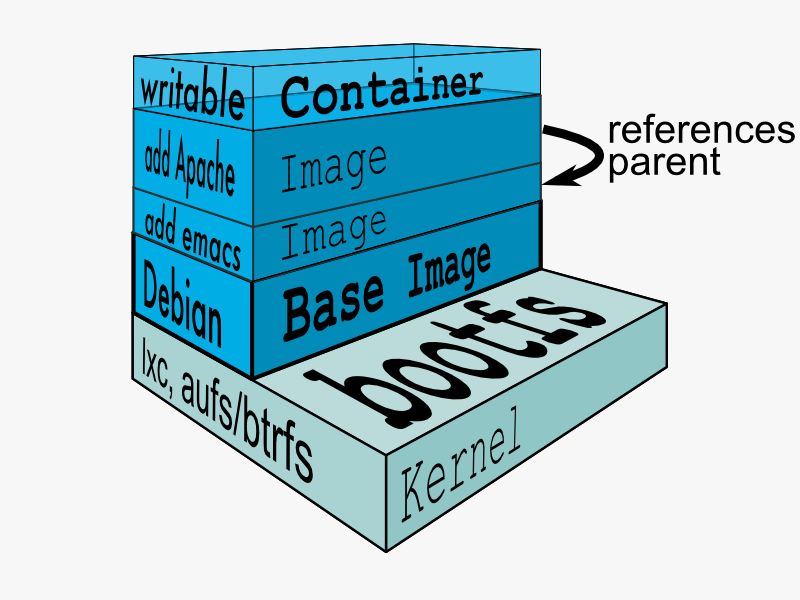
We need to have a disk image to make the virtualization work. The disk image represents the system we’re running on and they are the basis of containers.

docker-filesystems-multilayer.png

Docker registry is a registry of already existing images that we can use to run and create containerized applications.

There are lots of communities and works already been done to build the system. Docker company supports and maintains its registry and the community around it.

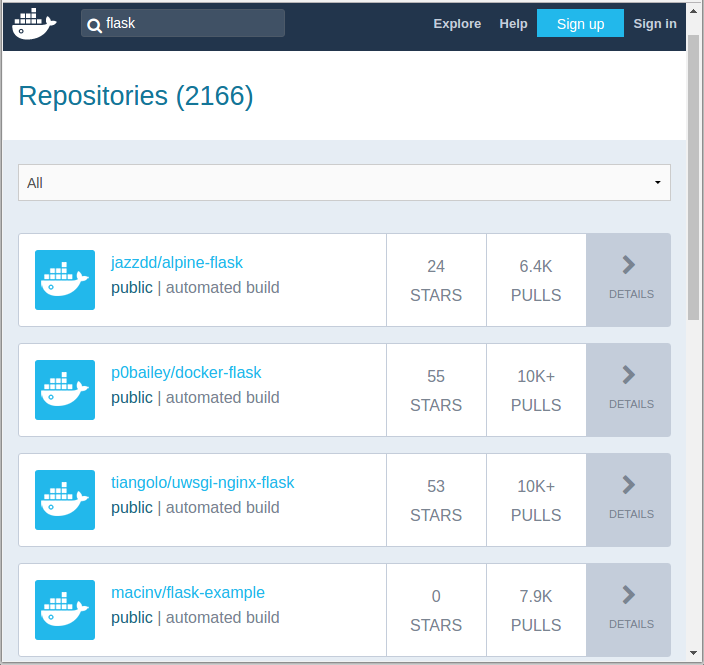
Docker_Registry_Search.png

We can search images within the registry hub, for example, the sample picture is the result from searching “flask”.

Docker search

The Docker search command allows us to go and look at the registry in search for the images that we want.

$ docker search --help

Usage: docker search [OPTIONS] TERM

Search the Docker Hub for images

  --automated=false    Only show automated builds
  --no-trunc=false     Don't truncate output
  -s, --stars=0        Only displays with at least x stars

If we do the same search, Jenkins, we get exactly the same result as we got from the web:

$ docker search ubuntu
NAME                      DESCRIPTION                                    STARS  OFFICIAL   AUTOMATED
ubuntu                    Ubuntu is a Debian-based Linux operating s...  5969     [OK]       
rastasheep/ubuntu-sshd    Dockerized SSH service, built on top of of...  83                   [OK]
ubuntu-upstart            Upstart is an event-based replacement for ...  71       [OK]       
ubuntu-debootstrap        debootstrap --variant=minbase --components...  30       [OK]       
torusware/speedus-ubuntu  Always updated official Ubuntu docker imag...  27                   [OK]
nuagebec/ubuntu           Simple always updated Ubuntu docker images...  20                   [OK]
...

We got too many outputs, so we need to filter it out items with more than 10 stars:

$ docker search --filter=stars=20 ubuntu
NAME                      DESCRIPTION                                    STARS   OFFICIAL   AUTOMATED
ubuntu                    Ubuntu is a Debian-based Linux operating s...  5969      [OK]       
rastasheep/ubuntu-sshd    Dockerized SSH service, built on top of of...  83                   [OK]
ubuntu-upstart            Upstart is an event-based replacement for ...  71        [OK]       
ubuntu-debootstrap        debootstrap --variant=minbase --components...  30        [OK]       
torusware/speedus-ubuntu  Always updated official Ubuntu docker imag...  27                   [OK]
nuagebec/ubuntu           Simple always updated Ubuntu docker images...  20                   [OK]

Docker pull

Once we found the image we like to use it, we can use Docker’s pull command:

$ docker pull --help

Usage:	docker pull [OPTIONS] NAME[:TAG|@DIGEST]

Pull an image or a repository from a registry

Options:
  -a, --all-tags                Download all tagged images in the repository
      --disable-content-trust   Skip image verification (default true)
      --help                    Print usage

The pull command will go up to the web site and grab the image and download it to our local machine.

$ docker pull ubuntu
Using default tag: latest
latest: Pulling from library/ubuntu
aafe6b5e13de: Pull complete 
0a2b43a72660: Pull complete 
18bdd1e546d2: Pull complete 
8198342c3e05: Pull complete 
f56970a44fd4: Pull complete 
Digest: sha256:f3a61450ae43896c4332bda5e78b453f4a93179045f20c8181043b26b5e79028
Status: Downloaded newer image for ubuntu:latest

The pull command without any tag will download all Ubuntu images though I’ve already done it. To see what Docker images are available on our machine, we use docker images:

$ docker images
REPOSITORY          TAG                 IMAGE ID            CREATED             VIRTUAL SIZE
ubuntu              latest              5506de2b643b        4 weeks ago         199.3 MB

So, the output indicates only one image is currently on my local machine. We also see the image has a TAG inside of it.

As we can see from the command below, docker pull centos:latest, we can also be more specific, and download only the version we need. In Docker, versions are marked with tags.

$ docker pull centos:latest
centos:latest: The image you are pulling has been verified
5b12ef8fd570: Pull complete 
ae0c2d0bdc10: Pull complete 
511136ea3c5a: Already exists 
Status: Downloaded newer image for centos:latest

Here is the images on our local machine.

$ docker images
REPOSITORY          TAG                 IMAGE ID            CREATED             VIRTUAL SIZE
centos              latest              ae0c2d0bdc10        2 weeks ago         224 MB
ubuntu              latest              5506de2b643b        4 weeks ago         199.3 MB

The command, docker images, returns the following columns:

  1. REPOSITORY: The name of the repository, which in this case is “ubuntu”.
  2. TAG: Tags represent a specific set point in the repositories’ commit history. As we can see from the list, we’ve pulled down different versions of linux. Each of these versions is tagged with a version number, a name, and there’s even a special tag called “latest” which represents the latest version.
  3. IMAGE ID: This is like the primary key for the image. Sometimes, such as when we commit a container without specifying a name or tag, the repository or the tag is <NONE>, but we can always refer to a specific image or container using its ID.
  4. CREATED: The date the repository was created, as opposed to when it was pulled. This can help us assess how “fresh” a particular build is. Docker appears to update their master images on a fairly frequent basis.
  5. VIRTUAL SIZE: The size of the image.

Docker run

Now we have images on our local machine. What do we do with them? This is where docker run command comes in.

$ docker run  --help

Usage: docker run [OPTIONS] IMAGE [COMMAND] [ARG...]

Run a command in a new container

  -a, --attach=[]            Attach to STDIN, STDOUT or STDERR.
  --add-host=[]              Add a custom host-to-IP mapping (host:ip)
  -c, --cpu-shares=0         CPU shares (relative weight)
  --cap-add=[]               Add Linux capabilities
  --cap-drop=[]              Drop Linux capabilities
  --cidfile=""               Write the container ID to the file
  --cpuset=""                CPUs in which to allow execution (0-3, 0,1)
  -d, --detach=false         Detached mode: run the container in the background and print the new container ID
  --device=[]                Add a host device to the container (e.g. --device=/dev/sdc:/dev/xvdc)
  --dns=[]                   Set custom DNS servers
  --dns-search=[]            Set custom DNS search domains
  -e, --env=[]               Set environment variables
  --entrypoint=""            Overwrite the default ENTRYPOINT of the image
  --env-file=[]              Read in a line delimited file of environment variables
  --expose=[]                Expose a port from the container without publishing it to your host
  -h, --hostname=""          Container host name
  -i, --interactive=false    Keep STDIN open even if not attached
  --link=[]                  Add link to another container in the form of name:alias
  --lxc-conf=[]              (lxc exec-driver only) Add custom lxc options --lxc-conf="lxc.cgroup.cpuset.cpus = 0,1"
  -m, --memory=""            Memory limit (format: <number><optional unit>, where unit = b, k, m or g)
  --name=""                  Assign a name to the container
  --net="bridge"             Set the Network mode for the container
                               'bridge': creates a new network stack for the container on the docker bridge
                               'none': no networking for this container
                               'container:<name|id>': reuses another container network stack
                               'host': use the host network stack inside the container.  Note: the host mode gives the container full access to local system services such as D-bus and is therefore considered insecure.
  -P, --publish-all=false    Publish all exposed ports to the host interfaces
  -p, --publish=[]           Publish a container's port to the host
                               format: ip:hostPort:containerPort | ip::containerPort | hostPort:containerPort | containerPort
                               (use 'docker port' to see the actual mapping)
</name|id></optional></number>

docker run --help is a rather big help, and we have more:

  --privileged=false         Give extended privileges to this container
  --restart=""               Restart policy to apply when a container exits (no, on-failure[:max-retry], always)
  --rm=false                 Automatically remove the container when it exits (incompatible with -d)
  --security-opt=[]          Security Options
  --sig-proxy=true           Proxy received signals to the process (even in non-TTY mode). SIGCHLD, SIGSTOP, and SIGKILL are not proxied.
  -t, --tty=false            Allocate a pseudo-TTY
  -u, --user=""              Username or UID
  -v, --volume=[]            Bind mount a volume (e.g., from the host: -v /host:/container, from Docker: -v /container)
  --volumes-from=[]          Mount volumes from the specified container(s)
  -w, --workdir=""           Working directory inside the container

Currently we are on Ubuntu 14.04.1 LTS machine (local):

$ cat /etc/issue
Ubuntu 14.04.1 LTS \n \l

Now we’re going to Docker run centos image. This will create container based upon the image and execute the bin/bash command. Then it will take us into a shell on that machine that can continue to do things:

$ docker run -it centos:latest /bin/bash
[root@98f52715ecfa /]# 

By executing it, we’re now on a bash. If we look at /etc/redhat-release:

[root@98f52715ecfa /]# cat /etc/redhat-release
CentOS Linux release 7.0.1406 (Core) 

We’re now on CentOS 7.0 on top of my Ubuntu 14.04 machine. We have an access to yum:

[root@98f52715ecfa /]# yum
Loaded plugins: fastestmirror
You need to give some command
Usage: yum [options] COMMAND

List of Commands:

check          Check for problems in the rpmdb
check-update   Check for available package updates
...

Let’s make a new file in our home directory:

[root@98f52715ecfa /]# ls
bin  dev  etc  home  lib  lib64  lost+found  media  mnt  opt  proc  root  run  sbin  selinux  srv  sys  tmp  usr  var
[root@98f52715ecfa /]# cd /home
[root@98f52715ecfa home]# ls
[root@98f52715ecfa home]# touch bogotobogo.txt
[root@98f52715ecfa home]# ls
bogotobogo.txt
[root@98f52715ecfa home]# exit
exit
k@laptop:~$ 

Docker ps – list containers

After making a new file on our Docker container, we exited from there, and we’re back to our local machine with Ubuntu system.

$ docker ps
CONTAINER ID        IMAGE               COMMAND             CREATED             STATUS              PORTS               NAMES

The docker ps lists containers but currently we do not have any. That’s because nothing is running. It shows only running containers.

We can list all containers using -a option:

$ docker ps -a
CONTAINER ID        IMAGE               COMMAND             CREATED             STATUS                     PORTS               NAMES
98f52715ecfa        centos:latest       "/bin/bash"         12 minutes ago      Exited (0) 5 minutes ago                       goofy_yonath        
f8c5951db6f5        ubuntu:latest       "/bin/bash"         4 hours ago         Exited (0) 4 hours ago                         furious_almeida     

Docker restart

How can we restart Docker container?

$ docker restart --help

Usage: docker restart [OPTIONS] CONTAINER [CONTAINER...]

Restart a running container

  -t, --time=10      Number of seconds to try to stop for before killing the container. Once killed it will then be restarted. Default is 10 seconds.

We can restart the container that’s already created:

$ docker restart 98f52715ecfa
98f52715ecfa

$ docker ps
CONTAINER ID        IMAGE               COMMAND             CREATED             STATUS              PORTS               NAMES
98f52715ecfa        centos:latest       "/bin/bash"         20 minutes ago      Up 10 seconds                           goofy_yonath        

Now we have one active running container, and it already executed the /bin/bash command.

Docker attach

The docker attach command allows us to attach to a running container using the container’s ID or name, either to view its ongoing output or to control it interactively. We can attach to the same contained process multiple times simultaneously, screen sharing style, or quickly view the progress of our daemonized process.

$ docker attach --help

Usage: docker attach [OPTIONS] CONTAINER

Attach to a running container

  --no-stdin=false    Do not attach STDIN
  --sig-proxy=true    Proxy all received signals to the process (even in non-TTY mode). SIGCHLD, SIGKILL, and SIGSTOP are not proxied.

We can attach to a running container:

$ docker attach 98f52715ecfa
[root@98f52715ecfa /]# 

[root@98f52715ecfa /]# cd /home
[root@98f52715ecfa home]# ls
bogotobogo.txt

Now we’re back to the CentOS container we’ve created, and the file we made is still there in our home directory.

Docker rm

We can delete the container:

[root@98f52715ecfa home]# exit
exit

$ docker ps -a
CONTAINER ID        IMAGE               COMMAND             CREATED             STATUS                      PORTS               NAMES
98f52715ecfa        centos:latest       "/bin/bash"         30 minutes ago      Exited (0) 14 seconds ago                       goofy_yonath        
f8c5951db6f5        ubuntu:latest       "/bin/bash"         5 hours ago         Exited (0) 5 hours ago                          furious_almeida   

$ docker rm f8c5951db6f5
f8c5951db6f5

$ docker ps -a
CONTAINER ID        IMAGE               COMMAND             CREATED             STATUS                     PORTS               NAMES
98f52715ecfa        centos:latest       "/bin/bash"         32 minutes ago      Exited (0) 2 minutes ago                       goofy_yonath        

We deleted the Ubuntu container and now we have only one container, CentOS.

Remove all images and containers

We use Docker, but working with it creates lots of images and containers. So, we may want to remove all of them to save disk space.

To delete all containers:

$ docker rm $(docker ps -a -q)

To delete all images:

$ docker rmi $(docker images -q)

Here the -a and -q do this:

  1. -a: Show all containers (default shows just running)
  2. -q: Only display numeric IDs

Docker elk kibana basics

Install Kibana 7.6 with Docker

Kibana is available as Docker images. The images use centos:7 as the base image.

A list of all published Docker images and tags is available at www.docker.elastic.co.

Pulling the image

Issue a docker pull command against the Elastic Docker registry:

$ docker pull docker.elastic.co/kibana/kibana:7.6.2

Running Kibana on Docker for development

Kibana can be quickly started and connected to a local Elasticsearch container for development or testing use with the following command:

$ docker ps
CONTAINER ID        IMAGE                                                 COMMAND                  CREATED             STATUS              PORTS                                            NAMES
e49fee1e070a        docker.elastic.co/logstash/logstash:7.6.2             "/usr/local/bin/dock…"   12 minutes ago      Up 12 minutes                                                        friendly_antonelli
addeb5426f0a        docker.elastic.co/beats/filebeat:7.6.2                "/usr/local/bin/dock…"   11 hours ago        Up 11 hours                                                          filebeat
caa1097bc4af        docker.elastic.co/elasticsearch/elasticsearch:7.6.2   "/usr/local/bin/dock…"   2 days ago          Up 2 days           0.0.0.0:9200->9200/tcp, 0.0.0.0:9300->9300/tcp   nifty_mayer   

$ docker run --link caa1097bc4af:elasticsearch -p 5601:5601 docker.elastic.co/kibana/kibana:7.6.2
...
{"type":"log","@timestamp":"2020-03-31T16:33:14Z","tags":["listening","info"],"pid":6,"message":"Server running at http://0:5601"}
{"type":"log","@timestamp":"2020-03-31T16:33:14Z","tags":["info","http","server","Kibana"],"pid":6,"message":"http server running at http://0:5601"}


$ docker ps
CONTAINER ID        IMAGE                                                 COMMAND                  CREATED             STATUS              PORTS                                            NAMES
620c39470d7f        docker.elastic.co/kibana/kibana:7.6.2                 "/usr/local/bin/dumb…"   2 hours ago         Up 2 hours          0.0.0.0:5601->5601/tcp                           dazzling_chatterjee
e49fee1e070a        docker.elastic.co/logstash/logstash:7.6.2             "/usr/local/bin/dock…"   3 hours ago         Up 3 hours                                                           friendly_antonelli
addeb5426f0a        docker.elastic.co/beats/filebeat:7.6.2                "/usr/local/bin/dock…"   14 hours ago        Up 14 hours                                                          filebeat
caa1097bc4af        docker.elastic.co/elasticsearch/elasticsearch:7.6.2   "/usr/local/bin/dock…"   2 days ago          Up 2 days           0.0.0.0:9200->9200/tcp, 0.0.0.0:9300->9300/tcp   nifty_mayer

Accessing_Kibana

Kibana is a web application that we can access through port 5601. All we need to do is point our web browser at the machine where Kibana is running and specify the port number. For example, localhost:5601 or http://YOURDOMAIN.com:5601. If we want to allow remote users to connect, set the parameter server.host in kibana.yml to a non-loopback address.

Kibana-access.png

When we access Kibana, the Discover page loads by default with the default index pattern selected. The time filter is set to the last 15 minutes and the search query is set to match-all (\*).

default-index-pattern.png

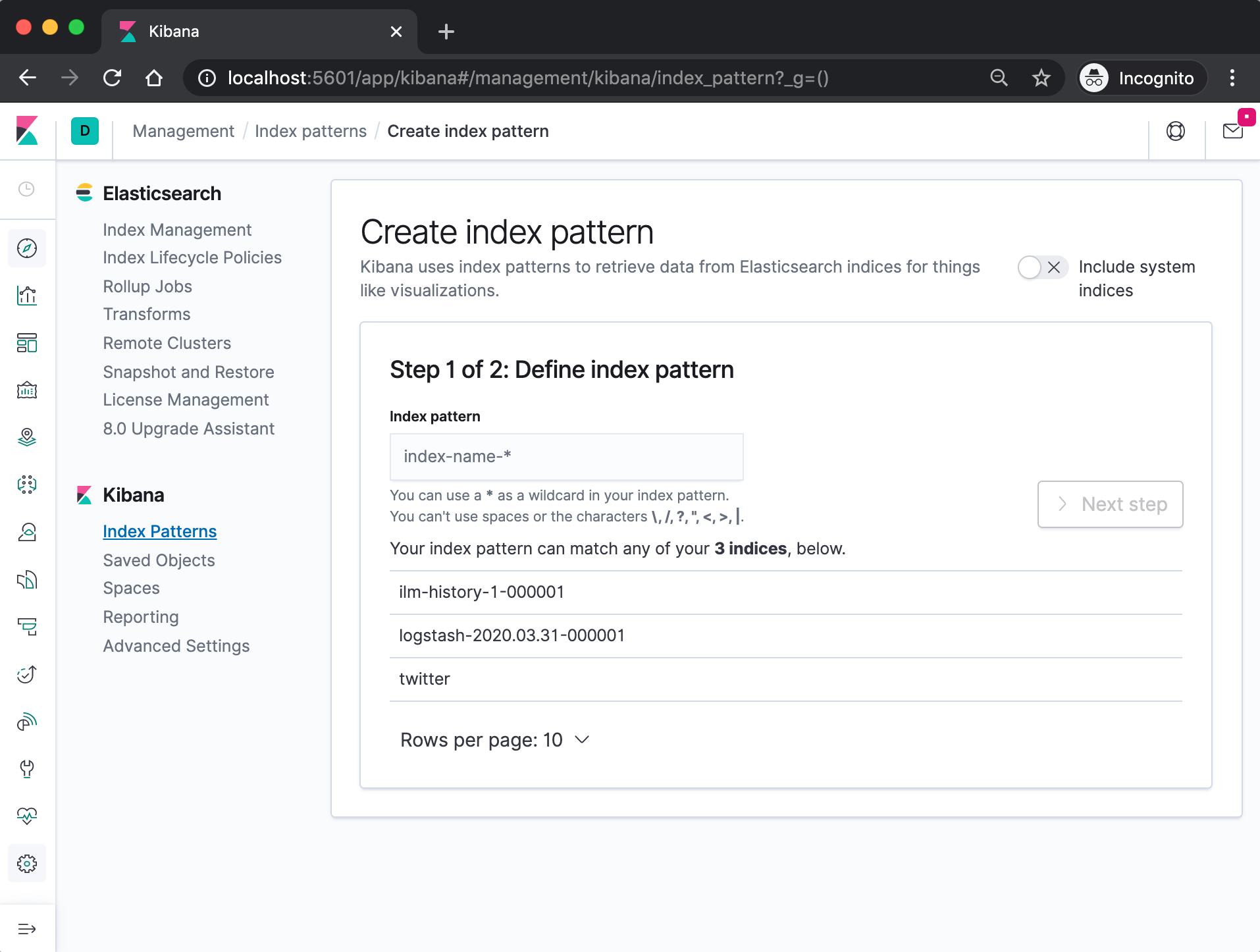
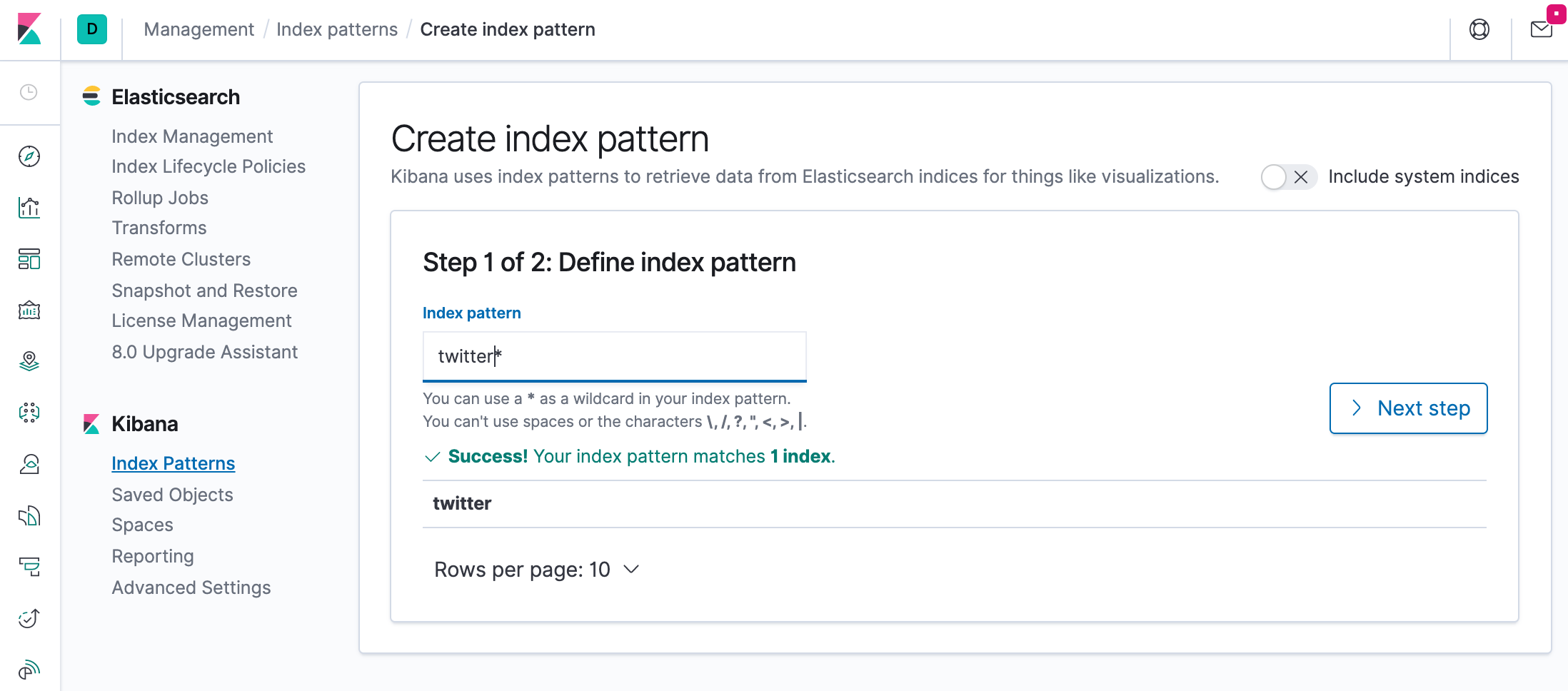
Specify an index pattern that matches the name of one or more of our Elasticsearch indices. The pattern can include an asterisk (*) to matches zero or more characters in an index’s name. When filling out our index pattern, any matched indices will be displayed.

index-patteern-matches-step1.png
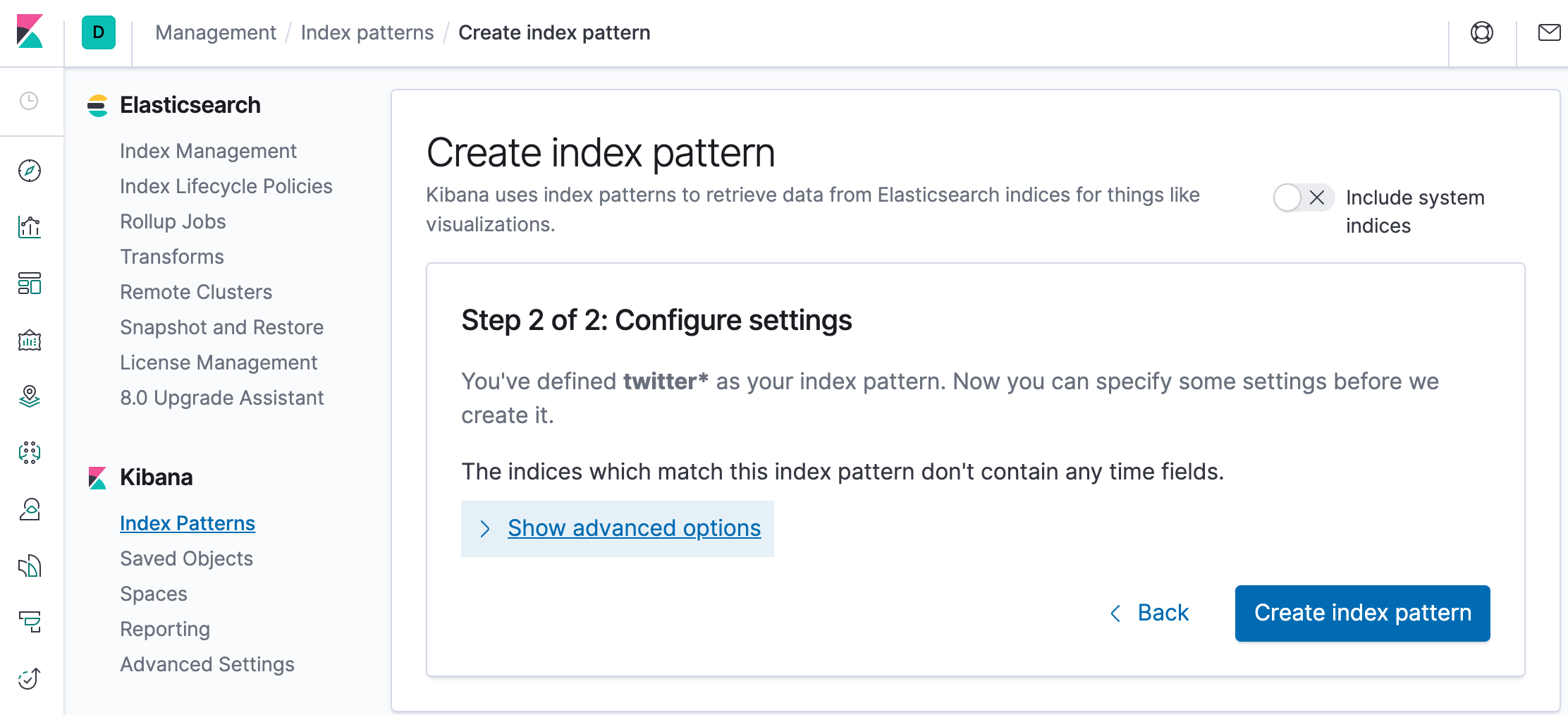
create-a-index-pattern.png

Click “Create index pattern” to add the index pattern. This first pattern is automatically configured as the default. When you have more than one index pattern, we can designate which one to use as the default by clicking on the star icon above the index pattern title from Management > Index Patterns.

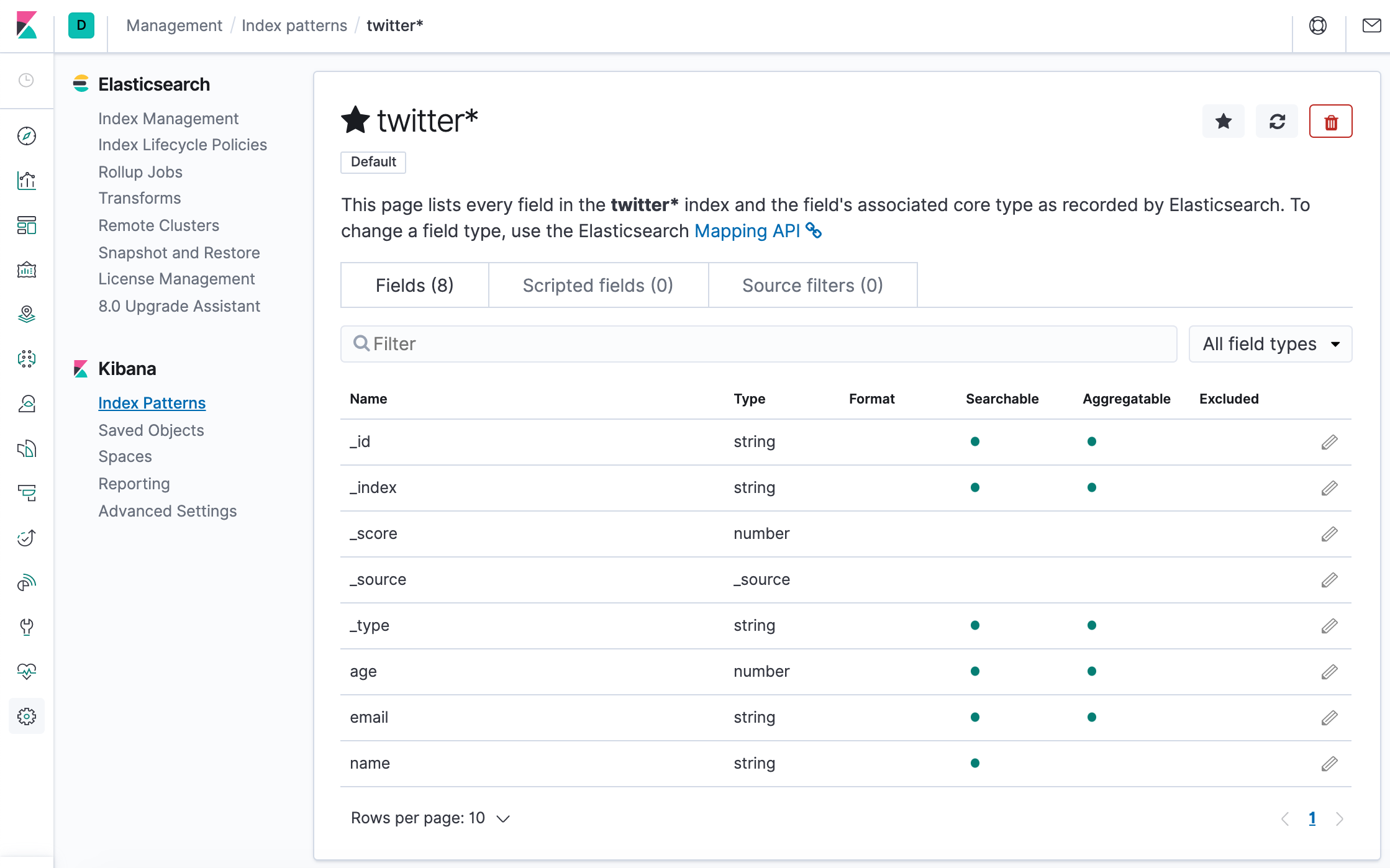
twitter-index.png

All done! Kibana is now connected to our Elasticsearch data. Kibana displays a read-only list of fields configured for the matching index.

Adding Kibana Sample Data from elastic.co

The following sections are based on https://www.elastic.co/guide/en/kibana/7.6/tutorial-sample-data.html

Now, let’s run ELK stack using ELK Stack with docker compose.

Before we do that, let’s modify the setup for xpack in “elasticsearch/config/elasticsearch.yml” to set “xpack.security.enabled: true”. Otherwise, we may the following error:

 {"error":{"root_cause":[{"type":"security_exception","reason":"missing authentication credentials for REST request [/]","header":{"WWW-Authenticate":"Basic realm=\"security\" charset=\"UTF-8\""}}],"type":"security_exception","reason":"missing authentication credentials for REST request [/]","header":{"WWW-Authenticate":"Basic realm=\"security\" charset=\"UTF-8\""}},"status":401}   
$ docker-compose up -d
Creating network "einsteinish-elk-stack-with-docker-compose_elk" with driver "bridge"
Creating einsteinish-elk-stack-with-docker-compose_elasticsearch_1 ... done
Creating einsteinish-elk-stack-with-docker-compose_kibana_1        ... done
Creating einsteinish-elk-stack-with-docker-compose_logstash_1      ... done

$ docker-compose ps
                          Name                                         Command               State                                        Ports                                      
-------------------------------------------------------------------------------------------------------------------------------------------------------------------------------------
einsteinish-elk-stack-with-docker-compose_elasticsearch_1   /usr/local/bin/docker-entr ...   Up      0.0.0.0:9200->9200/tcp, 0.0.0.0:9300->9300/tcp                                  
einsteinish-elk-stack-with-docker-compose_kibana_1          /usr/local/bin/dumb-init - ...   Up      0.0.0.0:5601->5601/tcp                                                          
einsteinish-elk-stack-with-docker-compose_logstash_1        /usr/local/bin/docker-entr ...   Up      0.0.0.0:5000->5000/tcp, 0.0.0.0:5000->5000/udp, 5044/tcp, 0.0.0.0:9600->9600/tcp
$ 

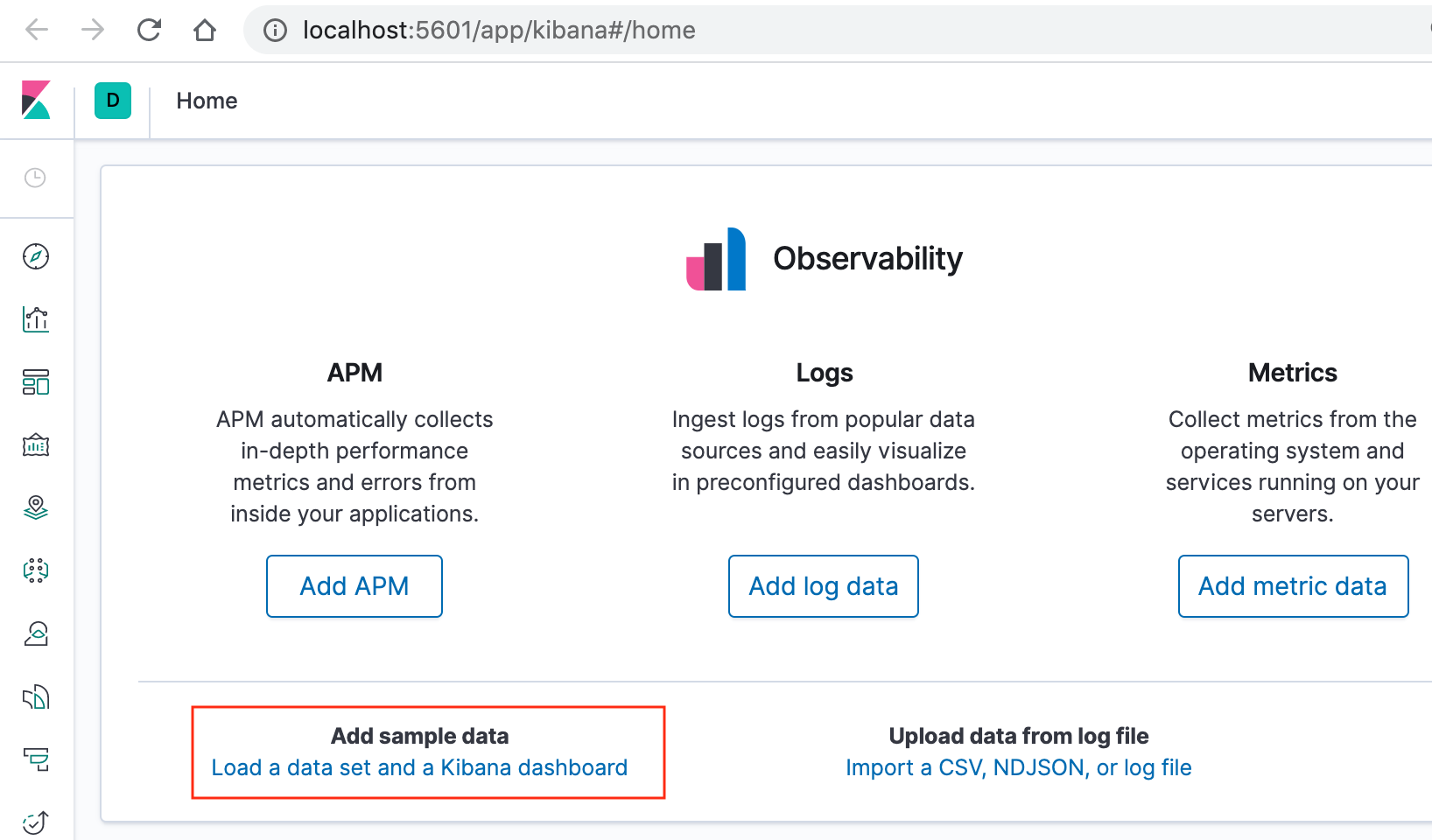
On the Kibana home page, click the link underneath Add sample data.

kibana-home.png

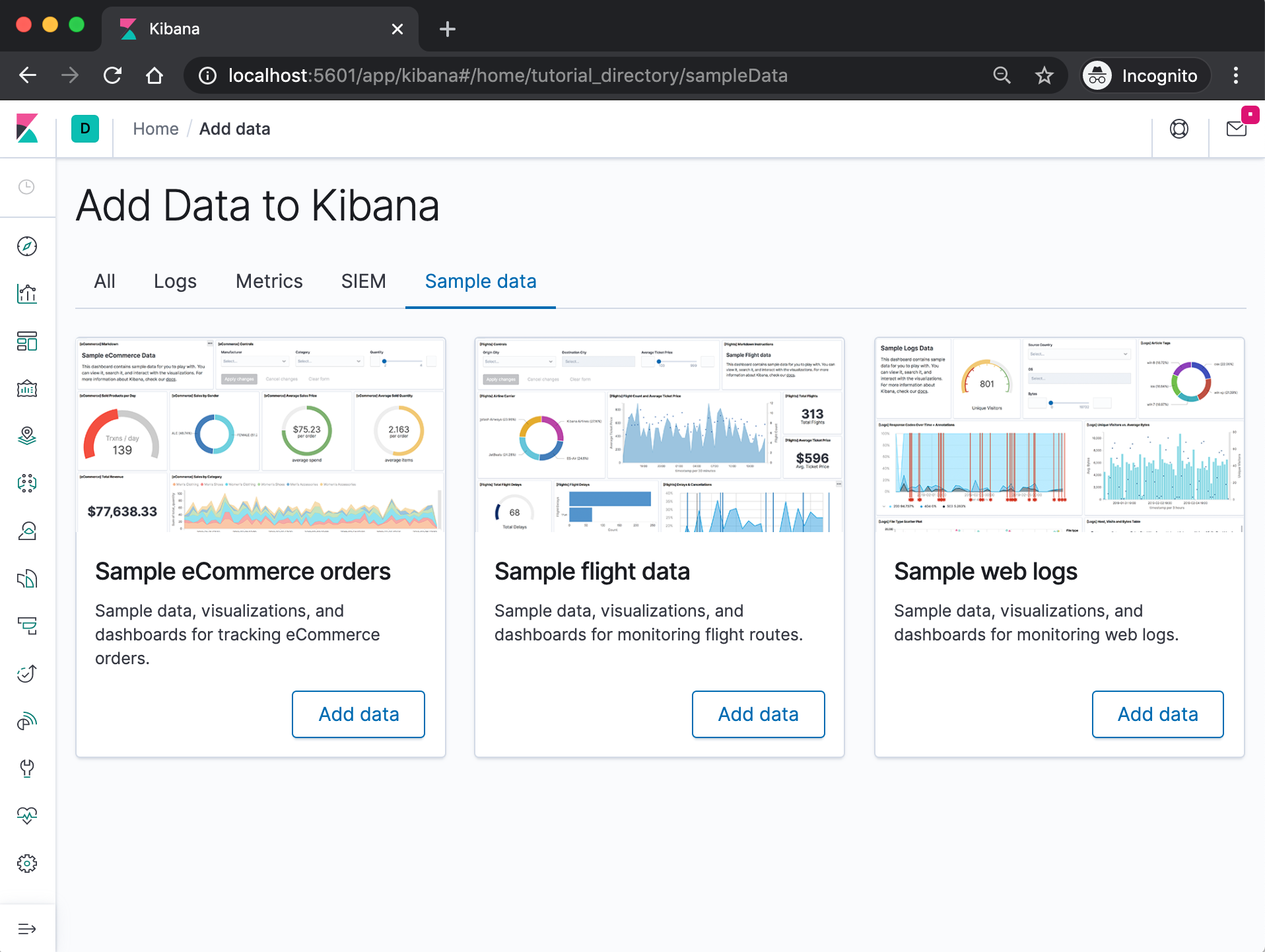
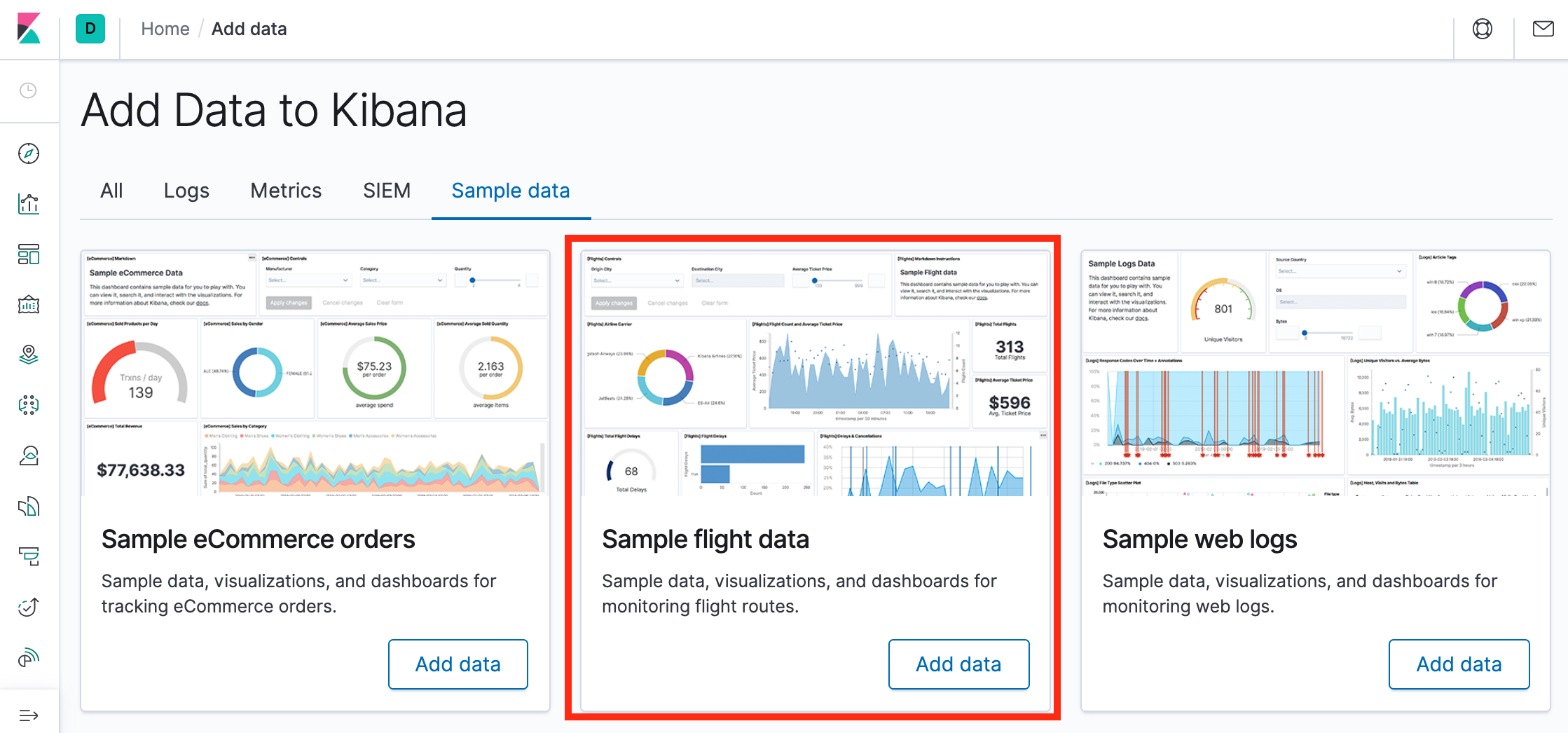
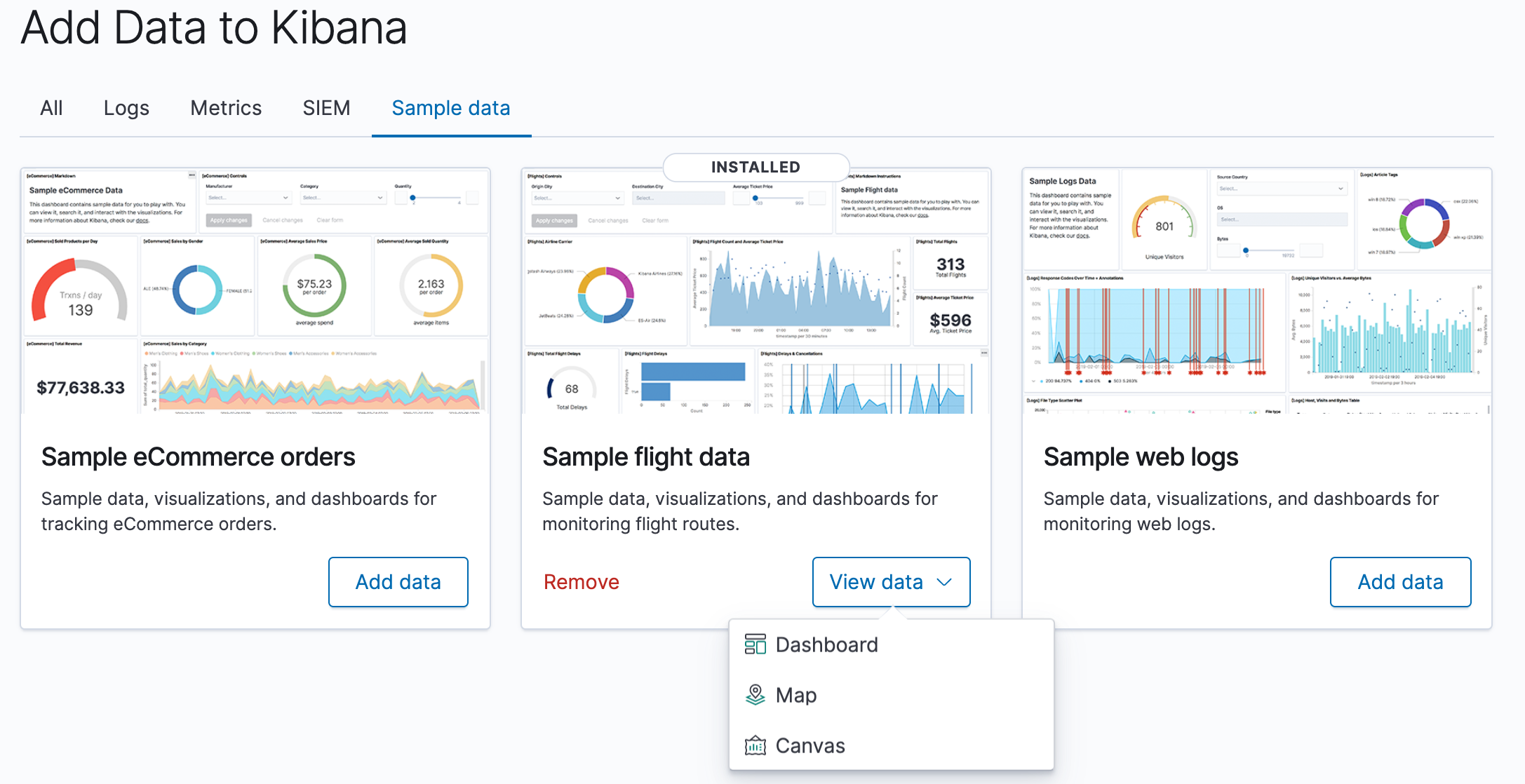
On the Sample flight data card, click Add data.

Add-Data-to-Kibana.png

Once the data is added, click View data > Dashboard.

View-Data-Kibana.png

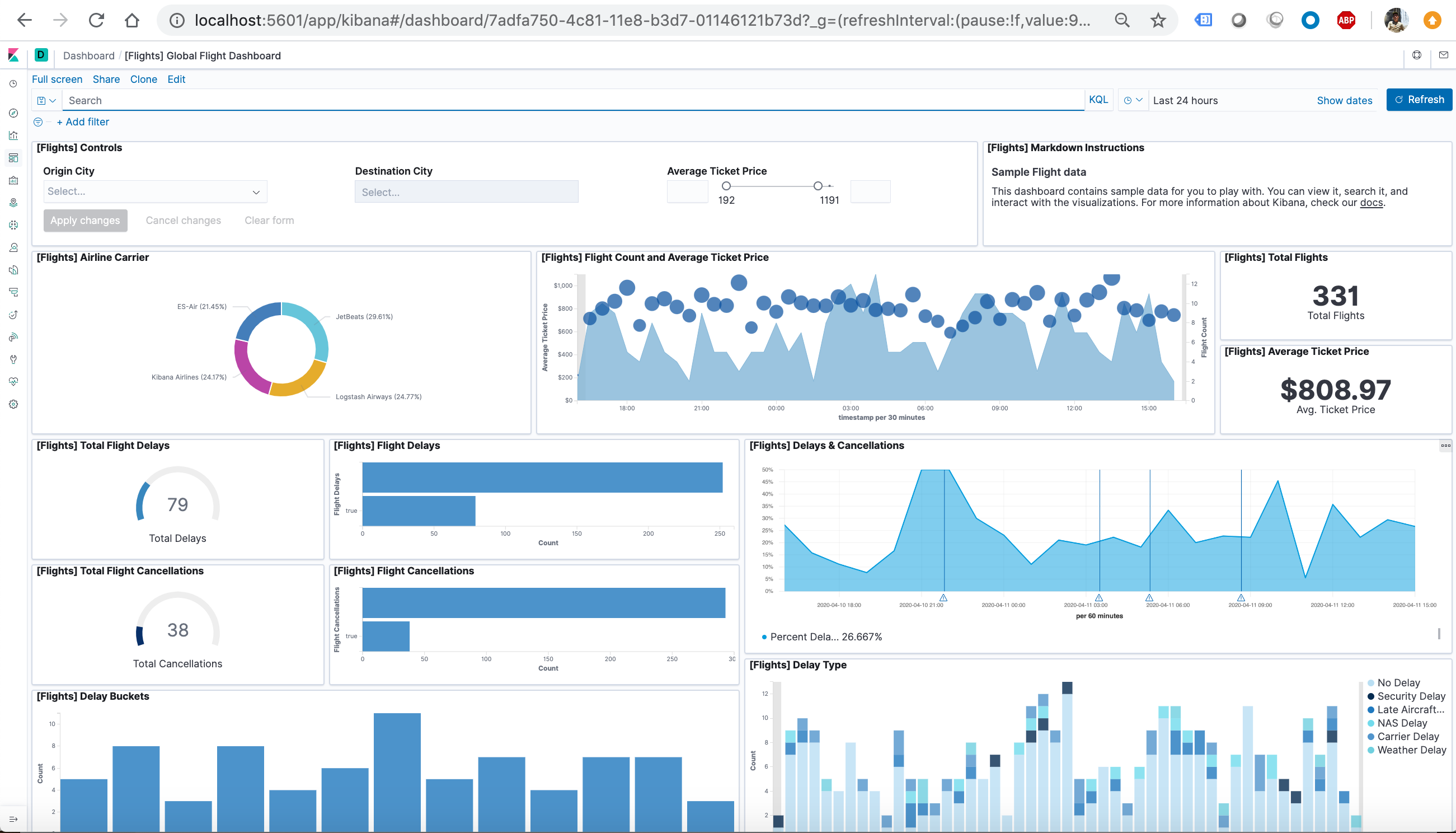
Now, we are on the Global Flight dashboard, a collection of charts, graphs, maps, and other visualizations of the the data in the kibana_sample_data_flights index.

First-DashBoard-Kibana.png

Filtering the Sample Data

  1. In the Controls visualization, set an Origin City and a Destination City.
  2. Click Apply changes. The OriginCityName and the DestCityName fields are filtered to match the data we specified. For example, this dashboard shows the data for flights from London to Oslo.
  3. To add a filter manually, click Add filter in the filter bar, and specify the data we want to view.
  4. When we are finished experimenting, remove all filters.

Querying the Data

  1. To find all flights out of Rome, enter this query in the query bar and click Update:OriginCityName:Rome
  2. For a more complex query with AND and OR, try this: OriginCityName:Rome AND (Carrier:JetBeats OR “Kibana Airlines”)
  3. When finished exploring the dashboard, remove the query by clearing the contents in the query bar and clicking Update.

Discovering the Data

In Discover, we have access to every document in every index that matches the selected index pattern. The index pattern tells Kibana which Elasticsearch index we are currently exploring. We can submit search queries, filter the search results, and view document data.

  1. In the side navigation, click Discover.
  2. Ensure kibana_sample_data_flights is the current index pattern. We might need to click New in the menu bar to refresh the data.
  3. To choose which fields to display, hover the pointer over the list of Available fields, and then click add next to each field we want include as a column in the table. For example, if we add the DestAirportID and DestWeather fields, the display includes columns for those two fields.

Editing Visualization

We have edit permissions for the Global Flight dashboard, so we can change the appearance and behavior of the visualizations. For example, we might want to see which airline has the lowest average fares.

  1. In the side navigation, click Recently viewed and open the Global Flight Dashboard.
  2. In the menu bar, click Edit.
  3. In the Average Ticket Price visualization, click the gear icon in the upper right.
  4. From the Options menu, select Edit visualization.

Create a bucket aggregation

  1. In the Buckets pane, select Add > Split group.
  2. In the Aggregation dropdown, select Terms.
  3. In the Field dropdown, select Carrier.
  4. Set Descending to 4.
  5. Click Apply changes apply changes button.

Save the Visualization

  1. In the menu bar, click Save.
  2. Leave the visualization name as is and confirm the save.
  3. Go to the Global Flight dashboard and scroll the Average Ticket Price visualization to see the four prices.
  4. Optionally, edit the dashboard. Resize the panel for the Average Ticket Price visualization by dragging the handle in the lower right. We can also rearrange the visualizations by clicking the header and dragging. Be sure to save the dashboard.

Inspect the data

Seeing visualizations of our data is great, but sometimes we need to look at the actual data to understand what’s really going on. We can inspect the data behind any visualization and view the Elasticsearch query used to retrieve it.

  1. In the dashboard, hover the pointer over the pie chart, and then click the icon in the upper right.
  2. From the Options menu, select Inspect. The initial view shows the document count.
  3. To look at the query used to fetch the data for the visualization, select View > Requests in the upper right of the Inspect pane.

Remove the sample data set

When we’re done experimenting with the sample data set, we can remove it.

  1. Go to the Sample data page.
  2. On the Sample flight data card, click Remove.

Note: Continues to Docker – ELK 7.6 : Kibana on Centos 7 Part 2.

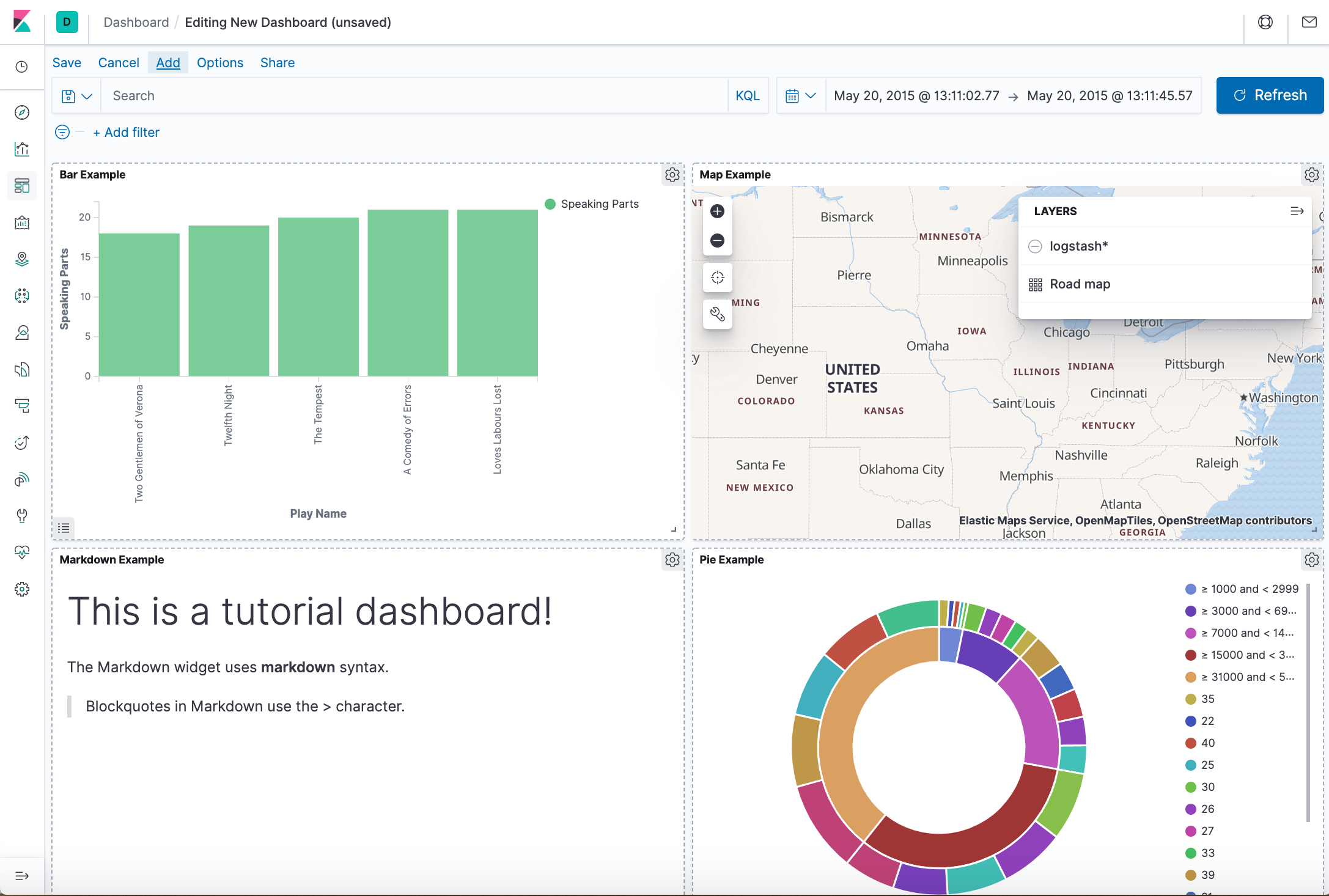
In the tutorial, we’ll build our own dashboard composed of 4 visualization panels as the following:

Dashboard-with-4-Panels.png