Trong ví dụ này chúng ta vào một hành trình nhỏ, đầu tiên các bạn cần biết là chiếc xe tự lái của chúng ta sử dụng cảm biến để cảm nhận môi trường.
tôi sẽ đi sâu vào chi tiết sau đó nhưng không phải bây giờ, trong hình bên dưới các bạn thấy rằng xe tự lái của Google sử dụng một bản đồ đường đi
được vẽ từ trước để tự định vị chính nó trong bản đồ. Nhưng, các bạn có để ý những khu vực màu đỏ trên bản đồ chính là sử dụng tia laze và rađa để theo dõi các phương tiện giao thông khác đang tham gia trên đường.
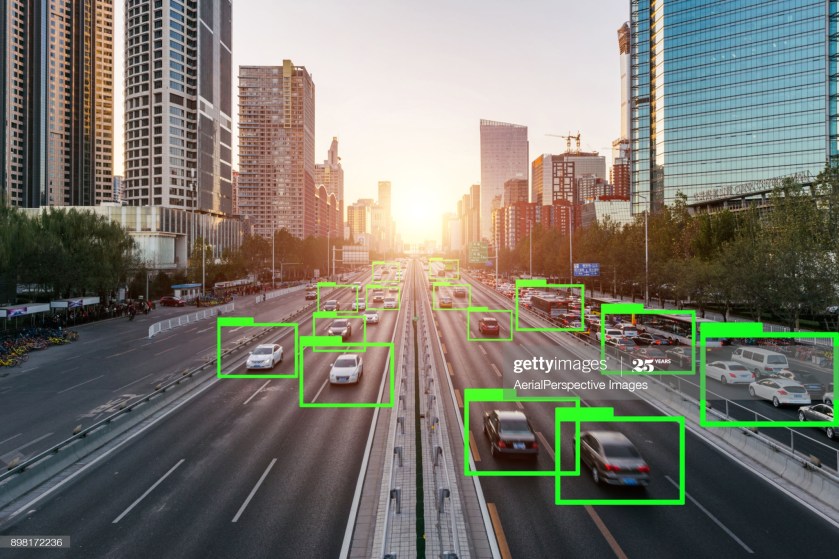
hôm nay chúng ta sẽ nói về cách tìm những ô tô đang chạy trên đường cùng với ta, lý do phải tìm định vị những chiếc xe này là để không xảy ra tai nạn, vì vậy chúng ta phải giải mã được dữ liệu cảm biến để đưa ra đánh giá không chỉ vị trí của những chiếc xe khác trong bản đồ mà còn cả tốc độ chúng di chuyển.
Nếu chiếc xe của bạn có thể tự lái theo cách cố gắng tránh những va chạm được dự đoán trước, thì điều đó quan trọng không chỉ đối với ô tô mà còn đối với người đi bộ và người đi xe đạp và hiểu những chiếc xe ở đâu và đưa ra dự đoán nơi họ sẽ đến di chuyển là hoàn toàn cần thiết để an toàn lái xe trong dự án xe hơi của Google.
Trong bài giản này mình muốn chia sẻ với các bạn về kỹ thuật theo dõi dấu vết và được gọi là bộ lọc Kalman, đây là một kỹ thuật cực kỳ phổ biến cho ước tính trạng thái chung của một hệ thống.
Lọc Kalman(Kalman Filter) ước tính trạng thái liên tục và kết quả là bộ lọc Kalman cung cấp cho chúng ta một phương trình dự đoán.
Throughout this lesson, you’ll apply your knowledge of neural networks on real datasets using TensorFlow(link for China), an open source Deep Learning library created by Google.
You’ll use TensorFlow to classify images from the notMNIST dataset – a dataset of images of English letters from A to J. You can see a few example images below.
Your goal is to automatically detect the letter based on the image in the dataset. You’ll be working on your own computer for this lab, so, first things first, install TensorFlow!
Install
OS X, Linux, Windows
Prerequisites
Intro to TensorFlow requires Python 3.4 or higher and Anaconda. If you don’t meet all of these requirements, please install the appropriate package(s).
Install TensorFlow
You’re going to use an Anaconda environment for this class. If you’re unfamiliar with Anaconda environments, check out the official documentation. More information, tips, and troubleshooting for installing tensorflow on Windows can be found here.
Note: If you’ve already created the environment for Term 1, you shouldn’t need to do so again here!
Run the following commands to setup your environment:
That’s it! You have a working environment with TensorFlow. Test it out with the code in the Hello, world! section below.
Docker on Windows
Docker instructions were offered prior to the availability of a stable Windows installation via pip or Anaconda. Please try Anaconda first, Docker instructions have been retained as an alternative to an installation via Anaconda.
Run the command below to start a jupyter notebook server with TensorFlow:
docker run -it -p 8888:8888 gcr.io/tensorflow/tensorflow
Users in China should use the b.gcr.io/tensorflow/tensorflow instead of gcr.io/tensorflow/tensorflow
You can access the jupyter notebook at localhost:8888. The server includes 3 examples of TensorFlow notebooks, but you can create a new notebook to test all your code.
Hello, world!
Try running the following code in your Python console to make sure you have TensorFlow properly installed. The console will print “Hello, world!” if TensorFlow is installed. Don’t worry about understanding what it does. You’ll learn about it in the next section.
import tensorflow as tf

# Create TensorFlow object called tensor
hello_constant = tf.constant('Hello World!')

with tf.Session() as sess:
    # Run the tf.constant operation in the session
    output = sess.run(hello_constant)
    print(output)
Errors
If you’re getting the error tensorflow.python.framework.errors.InvalidArgumentError: Placeholder:0 is both fed and fetched, you’re running an older version of TensorFlow. Uninstall TensorFlow, and reinstall it using the instructions above. For more solutions, check out the Common Problems section.
TensorFlow Math
Getting the input is great, but now you need to use it. You’re going to use basic math functions that everyone knows and loves – add, subtract, multiply, and divide – with tensors. (There’s many more math functions you can check out in the documentation.)
Addition
x = tf.add(5, 2) # 7
You’ll start with the add function. The tf.add() function does exactly what you expect it to do. It takes in two numbers, two tensors, or one of each, and returns their sum as a tensor.
Subtraction and Multiplication
Here’s an example with subtraction and multiplication.
x = tf.subtract(10, 4) # 6
y = tf.multiply(2, 5)  # 10
The x tensor will evaluate to 6, because 10 - 4 = 6. The y tensor will evaluate to 10, because 2 * 5 = 10. That was easy!
Converting types
It may be necessary to convert between types to make certain operators work together. For example, if you tried the following, it would fail with an exception:
tf.subtract(tf.constant(2.0),tf.constant(1)) # Fails with ValueError: Tensor conversion requested dtype float32 for Tensor with dtype int32:
That’s because the constant 1 is an integer but the constant 2.0 is a floating point value and subtract expects them to match.
In cases like these, you can either make sure your data is all of the same type, or you can cast a value to another type. In this case, converting the 2.0 to an integer before subtracting, like so, will give the correct result:
Let’s apply what you learned to convert an algorithm to TensorFlow. The code below is a simple algorithm using division and subtraction. Convert the following algorithm in regular Python to TensorFlow and print the results of the session. You can use tf.constant() for the values 10, 2, and 1.
Understanding of Convolutional Neural Network (CNN) — Deep Learning
In neural networks, Convolutional neural network (ConvNets or CNNs) is one of the main categories to do images recognition, images classifications. Objects detections, recognition faces etc., are some of the areas where CNNs are widely used.
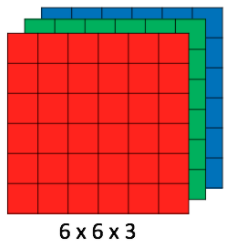
CNN image classifications takes an input image, process it and classify it under certain categories (Eg., Dog, Cat, Tiger, Lion). Computers sees an input image as array of pixels and it depends on the image resolution. Based on the image resolution, it will see h x w x d( h = Height, w = Width, d = Dimension ). Eg., An image of 6 x 6 x 3 array of matrix of RGB (3 refers to RGB values) and an image of 4 x 4 x 1 array of matrix of grayscale image.
Figure 1 : Array of RGB Matrix
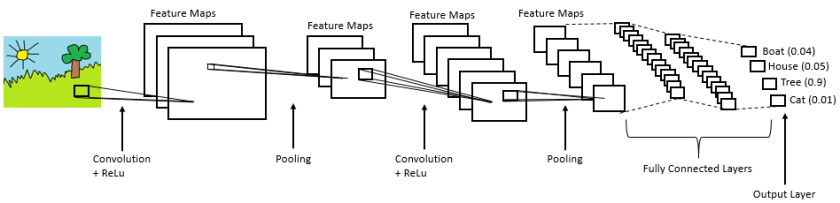
Technically, deep learning CNN models to train and test, each input image will pass it through a series of convolution layers with filters (Kernals), Pooling, fully connected layers (FC) and apply Softmax function to classify an object with probabilistic values between 0 and 1. The below figure is a complete flow of CNN to process an input image and classifies the objects based on values.
Figure 2 : Neural network with many convolutional layers
Convolution Layer
Convolution is the first layer to extract features from an input image. Convolution preserves the relationship between pixels by learning image features using small squares of input data. It is a mathematical operation that takes two inputs such as image matrix and a filter or kernel.
Figure 3: Image matrix multiplies kernel or filter matrix
Consider a 5 x 5 whose image pixel values are 0, 1 and filter matrix 3 x 3 as shown in below
Figure 4: Image matrix multiplies kernel or filter matrix
Then the convolution of 5 x 5 image matrix multiplies with 3 x 3 filter matrix which is called “Feature Map” as output shown in below
Figure 5: 3 x 3 Output matrix
Convolution of an image with different filters can perform operations such as edge detection, blur and sharpen by applying filters. The below example shows various convolution image after applying different types of filters (Kernels).
Figure 7 : Some common filters
Strides
Stride is the number of pixels shifts over the input matrix. When the stride is 1 then we move the filters to 1 pixel at a time. When the stride is 2 then we move the filters to 2 pixels at a time and so on. The below figure shows convolution would work with a stride of 2.
Figure 6 : Stride of 2 pixels
Padding
Sometimes filter does not fit perfectly fit the input image. We have two options:
Pad the picture with zeros (zero-padding) so that it fits
Drop the part of the image where the filter did not fit. This is called valid padding which keeps only valid part of the image.
Non Linearity (ReLU)
ReLU stands for Rectified Linear Unit for a non-linear operation. The output is ƒ(x) = max(0,x).
Why ReLU is important : ReLU’s purpose is to introduce non-linearity in our ConvNet. Since, the real world data would want our ConvNet to learn would be non-negative linear values.
Figure 7 : ReLU operation
There are other non linear functions such as tanh or sigmoid that can also be used instead of ReLU. Most of the data scientists use ReLU since performance wise ReLU is better than the other two.
Pooling Layer
Pooling layers section would reduce the number of parameters when the images are too large. Spatial pooling also called subsampling or downsampling which reduces the dimensionality of each map but retains important information. Spatial pooling can be of different types:
Max Pooling
Average Pooling
Sum Pooling
Max pooling takes the largest element from the rectified feature map. Taking the largest element could also take the average pooling. Sum of all elements in the feature map call as sum pooling.
Figure 8 : Max Pooling
Fully Connected Layer
The layer we call as FC layer, we flattened our matrix into vector and feed it into a fully connected layer like a neural network.
Figure 9 : After pooling layer, flattened as FC layer
In the above diagram, the feature map matrix will be converted as vector (x1, x2, x3, …). With the fully connected layers, we combined these features together to create a model. Finally, we have an activation function such as softmax or sigmoid to classify the outputs as cat, dog, car, truck etc.,
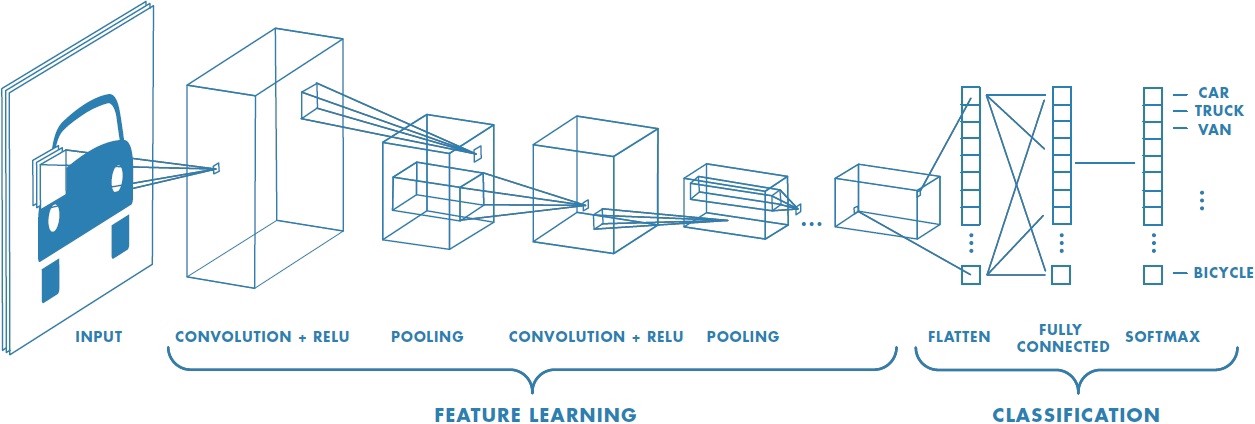
Figure 10 : Complete CNN architecture
Summary
Provide input image into convolution layer
Choose parameters, apply filters with strides, padding if requires. Perform convolution on the image and apply ReLU activation to the matrix.
Perform pooling to reduce dimensionality size
Add as many convolutional layers until satisfied
Flatten the output and feed into a fully connected layer (FC Layer)
Output the class using an activation function (Logistic Regression with cost functions) and classifies images.
In the next post, I would like to talk about some popular CNN architectures such as AlexNet, VGGNet, GoogLeNet, and ResNet.
The MNIST data that TensorFlow pre-loads comes as 28x28x1 images.
However, the LeNet architecture only accepts 32x32xC images, where C is the number of color channels.
In order to reformat the MNIST data into a shape that LeNet will accept, we pad the data with two rows of zeros on the top and bottom, and two columns of zeros on the left and right (28+2+2 = 32).
You do not need to modify this section.
import numpy as np

# Pad images with 0s
X_train      = np.pad(X_train, ((0,0),(2,2),(2,2),(0,0)), 'constant')
X_validation = np.pad(X_validation, ((0,0),(2,2),(2,2),(0,0)), 'constant')
X_test       = np.pad(X_test, ((0,0),(2,2),(2,2),(0,0)), 'constant')

print("Updated Image Shape: {}".format(X_train[0].shape))
Visualize Data
View a sample from the dataset.
You do not need to modify this section.
import random
 import numpy as np
 import matplotlib.pyplot as plt
 %matplotlib inline
 index = random.randint(0, len(X_train))
 image = X_train[index].squeeze()
 plt.figure(figsize=(1,1))
 plt.imshow(image, cmap="gray")
 print(y_train[index])
Preprocess Data
Shuffle the training data.
You do not need to modify this section.
from sklearn.utils import shuffle
 X_train, y_train = shuffle(X_train, y_train)
Setup TensorFlow
The EPOCH and BATCH_SIZE values affect the training speed and model accuracy.
You do not need to modify this section.In [ ]:
import tensorflow as tf
EPOCHS <strong>=</strong> 10
BATCH_SIZE <strong>=</strong> 128
TODO: Implement LeNet-5
Implement the LeNet-5 neural network architecture.
This is the only cell you need to edit.
Input
The LeNet architecture accepts a 32x32xC image as input, where C is the number of color channels. Since MNIST images are grayscale, C is 1 in this case.
Architecture
Layer 1: Convolutional. The output shape should be 28x28x6.
Activation. Your choice of activation function.
Pooling. The output shape should be 14x14x6.
Layer 2: Convolutional. The output shape should be 10x10x16.
Activation. Your choice of activation function.
Pooling. The output shape should be 5x5x16.
Flatten. Flatten the output shape of the final pooling layer such that it’s 1D instead of 3D. The easiest way to do is by using tf.contrib.layers.flatten, which is already imported for you.
Layer 3: Fully Connected. This should have 120 outputs.
Activation. Your choice of activation function.
Layer 4: Fully Connected. This should have 84 outputs.
Activation. Your choice of activation function.
Layer 5: Fully Connected (Logits). This should have 10 outputs.
Output
Return the result of the 2nd fully connected layer.
In this chapter, the first thing you’ll do is to compute the camera calibration matrix and distortion coefficients. You only need to compute these once, and then you’ll apply them to undistort each new frame. Next, you’ll apply thresholds to create a binary image and then apply a perspective transform.
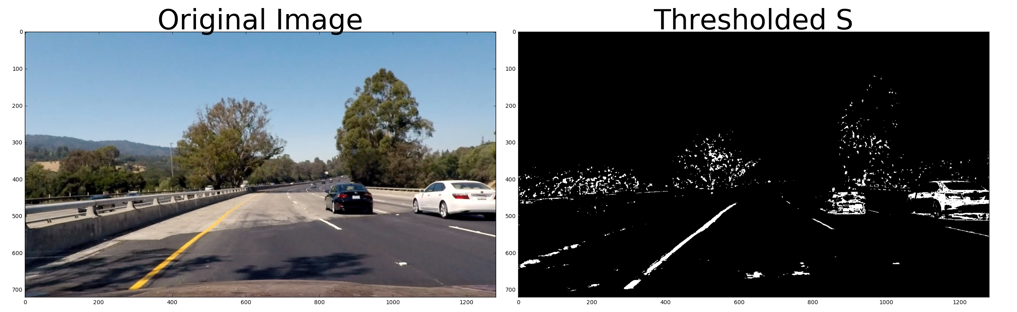
Thresholding
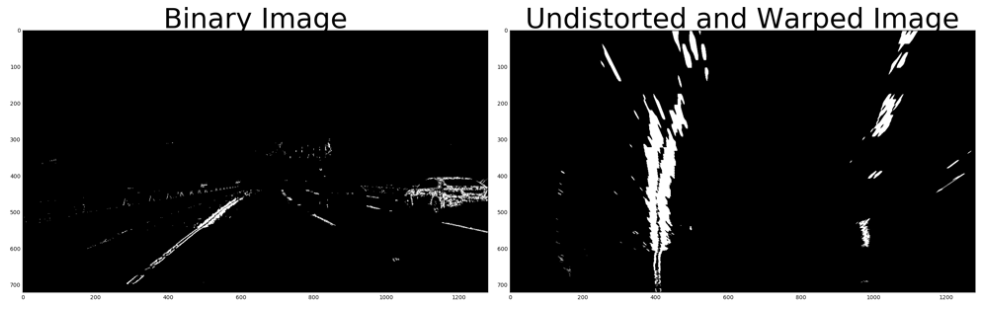
You’ll want to try out various combinations of color and gradient thresholds to generate a binary image where the lane lines are clearly visible. There’s more than one way to achieve a good result, but for example, given the image above, the output you’re going for should look something like this:
Perspective Transform
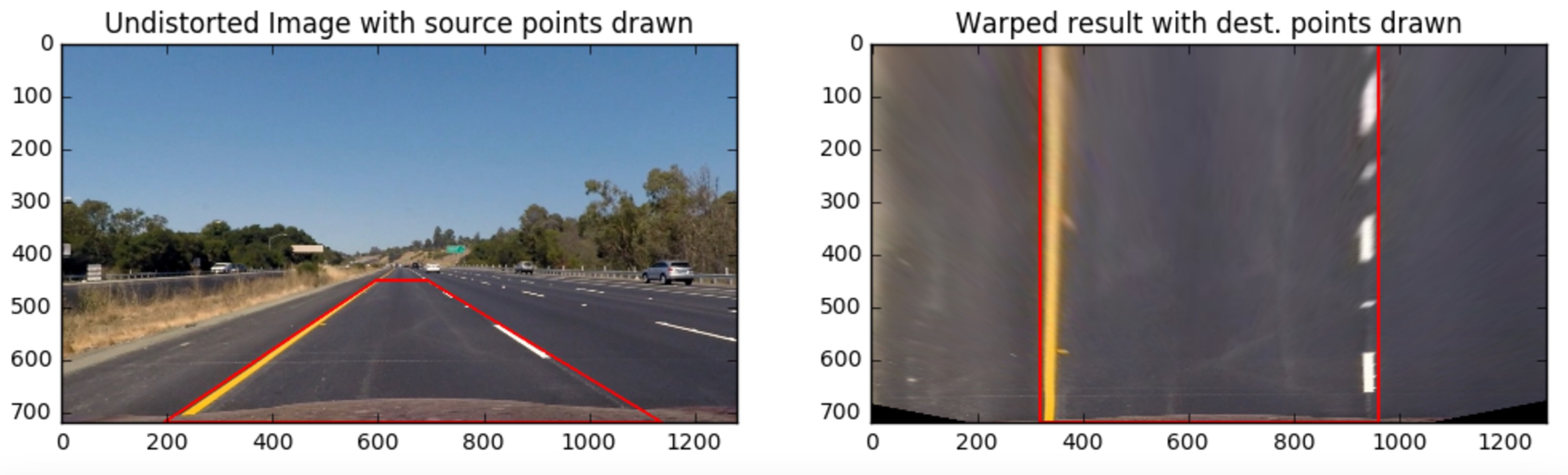
Next, you want to identify four source points for your perspective transform. In this case, you can assume the road is a flat plane. This isn’t strictly true, but it can serve as an approximation for this project. You would like to pick four points in a trapezoidal shape (similar to region masking) that would represent a rectangle when looking down on the road from above.
The easiest way to do this is to investigate an image where the lane lines are straight, and find four points lying along the lines that, after perspective transform, make the lines look straight and vertical from a bird’s eye view perspective.
Here’s an example of the result you are going for with straight lane lines:
Now for curved lines
Those same four source points will now work to transform any image (again, under the assumption that the road is flat and the camera perspective hasn’t changed). When applying the transform to new images, the test of whether or not you got the transform correct, is that the lane lines should appear parallel in the warped images, whether they are straight or curved.
Here’s an example of applying a perspective transform to your thresholded binary image, using the same source and destination points as above, showing that the curved lines are (more or less) parallel in the transformed image:
Locate the Lane Lines
Thresholded and perspective transformed image
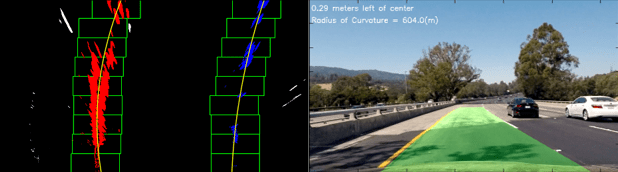
You now have a thresholded warped image and you’re ready to map out the lane lines! There are many ways you could go about this, but here’s one example of how you might do it:
Line Finding Method: Peaks in a Histogram
After applying calibration, thresholding, and a perspective transform to a road image, you should have a binary image where the lane lines stand out clearly. However, you still need to decide explicitly which pixels are part of the lines and which belong to the left line and which belong to the right line.
Plotting a histogram of where the binary activations occur across the image is one potential solution for this. In the quiz below, let’s take a couple quick steps to create our histogram!
123456789101112131415161718192021222324import numpy as npimport matplotlib.image as mpimgimport matplotlib.pyplot as plt# Load our image# `mpimg.imread` will load .jpg as 0-255, so normalize back to 0-1img = mpimg.imread(‘warped_example.jpg’)/255print(img.shape)def hist(img): # TO-DO: Grab only the bottom half of the image # Lane lines are likely to be mostly vertical nearest to the car bottom_half = img[img.shape[0]//2:,:] print(bottom_half) # TO-DO: Sum across image pixels vertically – make sure to set `axis` # i.e. the highest areas of vertical lines should be larger values histogram = np.sum(bottom_half, axis = 0) return histogram# Create histogram of image binary activationshistogram = hist(img)# Visualize the resulting histogramplt.plot(histogram)
RESET QUIZ
TEST RUN
SUBMIT ANSWER
Here’s the approach I took.
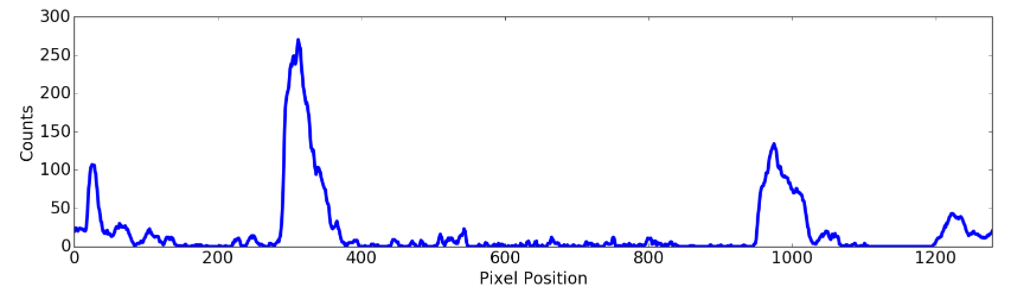
I take a histogram along all the columns in the lower half of the image like this:
import numpy as np
import matplotlib.pyplot as plt

histogram = np.sum(img[img.shape[0]//2:,:], axis=0)
plt.plot(histogram)
The result looks like this:
Sliding Window
With this histogram we are adding up the pixel values along each column in the image. In our thresholded binary image, pixels are either 0 or 1, so the two most prominent peaks in this histogram will be good indicators of the x-position of the base of the lane lines. We can use that as a starting point for where to search for the lines. From that point, we can use a sliding window, placed around the line centers, to find and follow the lines up to the top of the frame.
Implement Sliding Windows and Fit a Polynomial
As shown in the previous animation, we can use the two highest peaks from our histogram as a starting point for determining where the lane lines are, and then use sliding windows moving upward in the image (further along the road) to determine where the lane lines go.
Split the histogram for the two lines
The first step we’ll take is to split the histogram into two sides, one for each lane line.
import numpy as np
import cv2
import matplotlib.pyplot as plt

# Assuming you have created a warped binary image called "binary_warped"
# Take a histogram of the bottom half of the image
histogram = np.sum(binary_warped[binary_warped.shape[0]//2:,:], axis=0)
# Create an output image to draw on and visualize the result
out_img = np.dstack((binary_warped, binary_warped, binary_warped))*255
# Find the peak of the left and right halves of the histogram
# These will be the starting point for the left and right lines
midpoint = np.int(histogram.shape[0]//2)
leftx_base = np.argmax(histogram[:midpoint])
rightx_base = np.argmax(histogram[midpoint:]) + midpoint
Note that in the above, we also create out_img to help with visualizing our output later on.
Set up windows and window hyperparameters
Our next step is to set a few hyperparameters related to our sliding windows, and set them up to iterate across the binary activations in the image. We have some base hyperparameters below, but don’t forget to try out different values in your own implementation to see what works best!
# HYPERPARAMETERS
# Choose the number of sliding windows
nwindows = 9
# Set the width of the windows +/- margin
margin = 100
# Set minimum number of pixels found to recenter window
minpix = 50

# Set height of windows - based on nwindows above and image shape
window_height = np.int(binary_warped.shape[0]//nwindows)
# Identify the x and y positions of all nonzero (i.e. activated) pixels in the image
nonzero = binary_warped.nonzero()
nonzeroy = np.array(nonzero[0])
nonzerox = np.array(nonzero[1])
# Current positions to be updated later for each window in nwindows
leftx_current = leftx_base
rightx_current = rightx_base

# Create empty lists to receive left and right lane pixel indices
left_lane_inds = []
right_lane_inds = []
Iterate through nwindows to track curvature
Now that we’ve set up what the windows look like and have a starting point, we’ll want to loop for nwindows, with the given window sliding left or right if it finds the mean position of activated pixels within the window to have shifted.
You’ll implement this part in the quiz below, but here’s a few steps to get you started:
Loop through each window in nwindows
Find the boundaries of our current window. This is based on a combination of the current window’s starting point (leftx_current and rightx_current), as well as the margin you set in the hyperparameters.
Use cv2.rectangle to draw these window boundaries onto our visualization image out_img. This is required for the quiz, but you can skip this step in practice if you don’t need to visualize where the windows are.
Now that we know the boundaries of our window, find out which activated pixels from nonzeroy and nonzerox above actually fall into the window.
Append these to our lists left_lane_inds and right_lane_inds.
If the number of pixels you found in Step 4 are greater than your hyperparameter minpix, re-center our window (i.e. leftx_current or rightx_current) based on the mean position of these pixels.
Fit a polynomial
Now that we have found all our pixels belonging to each line through the sliding window method, it’s time to fit a polynomial to the line. First, we have a couple small steps to ready our pixels.
# Concatenate the arrays of indices (previously was a list of lists of pixels)
left_lane_inds = np.concatenate(left_lane_inds)
right_lane_inds = np.concatenate(right_lane_inds)

# Extract left and right line pixel positions
leftx = nonzerox[left_lane_inds]
lefty = nonzeroy[left_lane_inds]
rightx = nonzerox[right_lane_inds]
righty = nonzeroy[right_lane_inds]
We’ll let you implement the function for the polynomial in the quiz below using np.polyfit.
# Assuming we have `left_fit` and `right_fit` from `np.polyfit` before
# Generate x and y values for plotting
ploty = np.linspace(0, binary_warped.shape[0]-1, binary_warped.shape[0])
left_fitx = left_fit[0]*ploty**2 + left_fit[1]*ploty + left_fit[2]
right_fitx = right_fit[0]*ploty**2 + right_fit[1]*ploty + right_fit[2]
Take note of how we fit the lines above – while normally you calculate a y-value for a given x, here we do the opposite. Why? Because we expect our lane lines to be (mostly) vertically-oriented.
The ‘S’ channel, or Saturation, with binary activationA few more thresholds (left) for activation, with the resulting perspective transformationSliding windows and a decent-looking result
Perhaps the hottest topic in the world right now is artificial intelligence. When people talk about this, they often talk about machine learning, and specifically, neural networks.
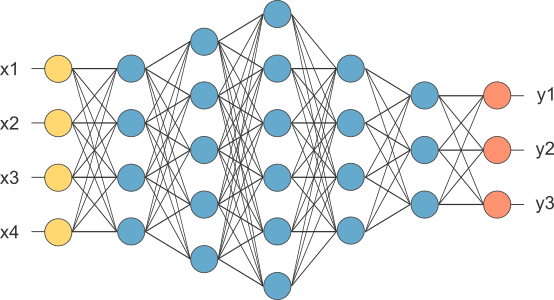
Now, neural networks should be familiar with you. If you put your hands like this, left and right, do it, then between your hands is a big neural network called your brain with something like 10 to 11 neurons, is crazy. What people have done in the last decades kind of abstracted this big mass in your brain into a basis set of equations that emulate a network of artificial neurons. Then people have invented ways to train these systems based on data.
So, rather than instructing a machine with rules like a piece of software, these neural networks are trained based on data.
So, you’re going to learn the very basics for now, perception, backpropagation, terminology that doesn’t make sense yet, but by the end of this unit, you should be able to write and code and train your own neural network.
That’s is so fun!
A Note on Deep Learning
The following lessons contain introductory and intermediate material on neural networks, building a neural network from scratch, using TensorFlow, and Convolutional Neural Networks:
Neural Networks
TensorFlow
Deep Neural Networks
Convolutional Neural Networks
Linear to Logistic Regression
Linear regression helps predict values on a continuous spectrum, like predicting what the price of a house will be.
How about classifying data among discrete classes?
Here are examples of classification tasks:
Determining whether a patient has cancer
Identifying the species of a fish
Figuring out who’s talking on a conference call
Classification problems are important for self-driving cars. Self-driving cars might need to classify whether an object crossing the road is a car, pedestrian, and a bicycle. Or they might need to identify which type of traffic sign is coming up, or what a stop light is indicating.
In the next video, Luis will demonstrate a classification algorithm called “logistic regression”. He’ll use logistic regression to predict whether a student will be accepted to a university.
Linear regression leads to logistic regression and ultimately neural networks, a more advanced classification tool.
QuiZ:
So let’s say we’re studying the housing market and our task is to predict the price of a house given its size. So we have a small house that costs $70,000 and a big house that costs $160,000.
We’d like to estimate the price of these medium-sized house over here. So how do we do it?
Well, first we put them in a grid where the x-axis represents the size of the house in square feet and the y-axis represents the price of the house. And to help us out, we have collected some previous data in the form of these blue dots.
These are other houses that we’ve looked at and we’ve recorded their prices with respect to their size. And here we can see the small house is priced at $70,000 and the big one at $160,000.
Now it’s time for a small quiz.
What do you think is the best estimate for the price of the medium house given this data?
Would it be $80,000, $120,000 or $190,000?
Yes you are right: The answer is 120,000. But how we do that?
Well to help us out, we can see that these points can form a line. And we can draw the line that best fits this data. Now on this line, we can see that our best guess for the price of the house is this point here over the line which corresponds to $120000.
So if you said $120000, that is correct.
This method is known as linear regression. You can think of linear regression as a painter who would look at your data and draw the best fitting line through it. And you may ask, “How do we find this line?”
Well, that’s what the rest of the section will be about.
Linear to Logistic Regression
Linear regression helps predict values on a continuous spectrum, like predicting what the price of a house will be.
How about classifying data among discrete classes?
Here are examples of classification tasks:
Determining whether a patient has cancer
Identifying the species of a fish
Figuring out who’s talking on a conference call
Classification problems are important for self-driving cars. Self-driving cars might need to classify whether an object crossing the road is a car, pedestrian, and a bicycle. Or they might need to identify which type of traffic sign is coming up, or what a stop light is indicating.
In the next video, I will demonstrate a classification algorithm called “logistic regression”. I’ll use logistic regression to predict whether a student will be accepted to a university.
Linear regression leads to logistic regression and ultimately neural networks, a more advanced classification tool.
Problem:
So, let’s start with one classification example.
Let’s say we are the admissions office at a university and our job is to accept or reject students. So, in order to evaluate students, we have two pieces of information, the results of a test and their grades in school.
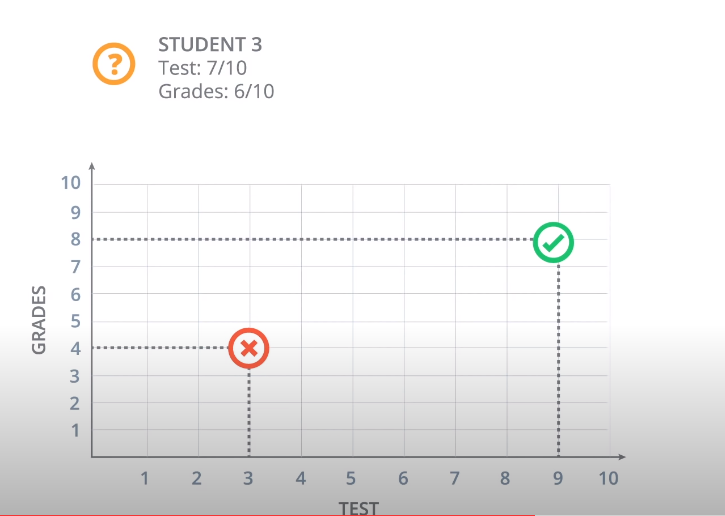
So, let’s take a look at some sample students. We’ll start with Student 1 who got 9 out of 10 in the test and 8 out of 10 in the grades. That student did quite well and got accepted. Then we have Student 2 who got 3 out of 10 in the test and 4 out of 10 in the grades, and that student got rejected.
And now, we have a new Student 3 who got 7 out of 10 in the test and 6 out of 10 in the grades, and we’re wondering if the student gets accepted or not. So, our first way to find this out is to plot students in a graph with the horizontal axis corresponding to the score on the test and the vertical axis corresponding to the grades, and the students would fit here.
The students who got three and four gets located in the point with coordinates (3,4), and the student who got nine and eight gets located in the point with coordinates (9,8).
And now we’ll do what we do in most of our algorithms, which is to look at the previous data.
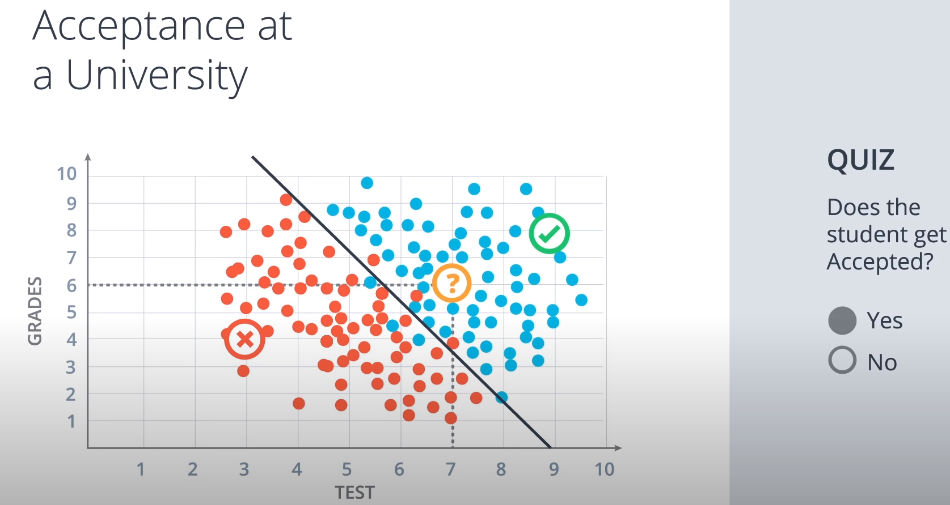
This is how the previous data looks. These are all the previous students who got accepted or rejected.
The blue points correspond to students that got accepted, and the red points to students that got rejected.
So we can see in this diagram that the students would did well in the test and grades are more likely to get accepted, and the students who did poorly in both are more likely to get rejected.
So let’s start with a quiz.
The quiz says, does the Student 3 get accepted or rejected?
What do you think?
The answer is: Student 3 is pass.
Correct. Well, it seems that this data can be nicely separated by a line which is this line over here,
and it seems that most students over the line get accepted and most students under the line get rejected.
So this line is going to be our model. The model makes a couple of mistakes since there area few blue points that are under the line and a few red points over the line. But we’re not going to care about those. I will say that it’s safe to predict that if a point is over the line the student gets accepted and if it’s under the line then the student gets rejected.
So based on this model we’ll look at the new student that we see that they are over here at the point 7:6 which is above the line. So we can assume with some confidence that the student gets accepted. so if you answered yes, that’s the correct answer.
And now a question arises. The question is, how do we find this line?
So we can kind of eyeball it. But the computer can’t. We’ll dedicate the rest of the session to show you algorithms that will find this line, not only for this example, but for much more general and complicated cases. But we will talk about that in my next post. See you later!
In the last exercise, we alredy know how select the color of the lane on highway, this is very important for the camera of self-driving car. In this case, I’ll assume that the front facing camera that took the image is mounted in a fixed position on the car, such that the lane lines will always appear in the same general region of the image. Next, I’ll take advantage of this by adding a criterion to only consider pixels for color selection in the region where we expect to find the lane lines.
Check out the code below. The variables left_bottom, right_bottom, and apex represent the vertices of a triangular region that I would like to retain for my color selection, while masking everything else out. Here I’m using a triangular mask to illustrate the simplest case, but later you’ll use a quadrilateral, and in principle, you could use any polygon.
import matplotlib.pyplot as plt
import matplotlib.image as mpimg
import numpy as np

# Read in the image and print some stats
image = mpimg.imread('test.jpg')
print('This image is: ', type(image),
         'with dimensions:', image.shape)

# Pull out the x and y sizes and make a copy of the image
ysize = image.shape[0]
xsize = image.shape[1]
region_select = np.copy(image)

# Define a triangle region of interest
# Keep in mind the origin (x=0, y=0) is in the upper left in image processing
# Note: if you run this code, you'll find these are not sensible values!!
# But you'll get a chance to play with them soon in a quiz
left_bottom = [0, 539]
right_bottom = [900, 300]
apex = [400, 0]

# Fit lines (y=Ax+B) to identify the  3 sided region of interest
# np.polyfit() returns the coefficients [A, B] of the fit
fit_left = np.polyfit((left_bottom[0], apex[0]), (left_bottom[1], apex[1]), 1)
fit_right = np.polyfit((right_bottom[0], apex[0]), (right_bottom[1], apex[1]), 1)
fit_bottom = np.polyfit((left_bottom[0], right_bottom[0]), (left_bottom[1], right_bottom[1]), 1)

# Find the region inside the lines
XX, YY = np.meshgrid(np.arange(0, xsize), np.arange(0, ysize))
region_thresholds = (YY > (XX*fit_left[0] + fit_left[1])) & \
                    (YY > (XX*fit_right[0] + fit_right[1])) & \
                    (YY < (XX*fit_bottom[0] + fit_bottom[1]))

# Color pixels red which are inside the region of interest
region_select[region_thresholds] = [255, 0, 0]

# Display the image
plt.imshow(region_select)

# uncomment if plot does not display
# plt.show()
Combining Color and Region Selections
Now you’ve seen how to mask out a region of interest in an image. Next, let’s combine the mask and color selection to pull only the lane lines out of the image.
Check out the code below. Here we’re doing both the color and region selection steps, requiring that a pixel meet both the mask and color selection requirements to be retained.
import matplotlib.pyplot as plt
import matplotlib.image as mpimg
import numpy as np

# Read in the image
image = mpimg.imread('test.jpg')

# Grab the x and y sizes and make two copies of the image
# With one copy we'll extract only the pixels that meet our selection,
# then we'll paint those pixels red in the original image to see our selection
# overlaid on the original.
ysize = image.shape[0]
xsize = image.shape[1]
color_select= np.copy(image)
line_image = np.copy(image)

# Define our color criteria
red_threshold = 0
green_threshold = 0
blue_threshold = 0
rgb_threshold = [red_threshold, green_threshold, blue_threshold]

# Define a triangle region of interest (Note: if you run this code,
# Keep in mind the origin (x=0, y=0) is in the upper left in image processing
# you'll find these are not sensible values!!
# But you'll get a chance to play with them soon in a quiz 😉
left_bottom = [0, 539]
right_bottom = [900, 300]
apex = [400, 0]

fit_left = np.polyfit((left_bottom[0], apex[0]), (left_bottom[1], apex[1]), 1)
fit_right = np.polyfit((right_bottom[0], apex[0]), (right_bottom[1], apex[1]), 1)
fit_bottom = np.polyfit((left_bottom[0], right_bottom[0]), (left_bottom[1], right_bottom[1]), 1)

# Mask pixels below the threshold
color_thresholds = (image[:,:,0] < rgb_threshold[0]) | \
                    (image[:,:,1] < rgb_threshold[1]) | \
                    (image[:,:,2] < rgb_threshold[2])

# Find the region inside the lines
XX, YY = np.meshgrid(np.arange(0, xsize), np.arange(0, ysize))
region_thresholds = (YY > (XX*fit_left[0] + fit_left[1])) & \
                    (YY > (XX*fit_right[0] + fit_right[1])) & \
                    (YY < (XX*fit_bottom[0] + fit_bottom[1]))
# Mask color selection
color_select[color_thresholds] = [0,0,0]
# Find where image is both colored right and in the region
line_image[~color_thresholds & region_thresholds] = [255,0,0]

# Display our two output images
plt.imshow(color_select)
plt.imshow(line_image)

# uncomment if plot does not display
# plt.show()
In the next quiz, you can vary your color selection and the shape of your region mask (vertices of a triangle left_bottom, right_bottom, and apex), such that you pick out the lane lines and nothing else.
After combine region-making and color-classification:
import matplotlib.pyplot as plt
import matplotlib.image as mpimg
import numpy as np

# Read in the image
image = mpimg.imread('test.jpg')

# Grab the x and y size and make a copy of the image
ysize = image.shape[0]
xsize = image.shape[1]
color_select = np.copy(image)
line_image = np.copy(image)

# Define color selection criteria
# MODIFY THESE VARIABLES TO MAKE YOUR COLOR SELECTION
red_threshold = 200
green_threshold = 200
blue_threshold = 200

rgb_threshold = [red_threshold, green_threshold, blue_threshold]

# Define the vertices of a triangular mask.
# Keep in mind the origin (x=0, y=0) is in the upper left
# MODIFY THESE VALUES TO ISOLATE THE REGION
# WHERE THE LANE LINES ARE IN THE IMAGE
left_bottom = [115, 540]
right_bottom = [800, 540]
apex = [455, 300]

# Perform a linear fit (y=Ax+B) to each of the three sides of the triangle
# np.polyfit returns the coefficients [A, B] of the fit
fit_left = np.polyfit((left_bottom[0], apex[0]), (left_bottom[1], apex[1]), 1)
fit_right = np.polyfit((right_bottom[0], apex[0]), (right_bottom[1], apex[1]), 1)
fit_bottom = np.polyfit((left_bottom[0], right_bottom[0]), (left_bottom[1], right_bottom[1]), 1)

# Mask pixels below the threshold
color_thresholds = (image[:,:,0] < rgb_threshold[0]) | \
                    (image[:,:,1] < rgb_threshold[1]) | \
                    (image[:,:,2] < rgb_threshold[2])

# Find the region inside the lines
XX, YY = np.meshgrid(np.arange(0, xsize), np.arange(0, ysize))
region_thresholds = (YY > (XX*fit_left[0] + fit_left[1])) & \
                    (YY > (XX*fit_right[0] + fit_right[1])) & \
                    (YY < (XX*fit_bottom[0] + fit_bottom[1]))

# Mask color and region selection
color_select[color_thresholds | ~region_thresholds] = [0, 0, 0]
# Color pixels red where both color and region selections met
line_image[~color_thresholds & region_thresholds] = [255, 0, 0]

# Display the image and show region and color selections
plt.imshow(image)
x = [left_bottom[0], right_bottom[0], apex[0], left_bottom[0]]
y = [left_bottom[1], right_bottom[1], apex[1], left_bottom[1]]
plt.plot(x, y, 'b--', lw=4)
plt.imshow(color_select)
plt.imshow(line_image)
Now that you have a conceptual grasp on how the Canny algorithm works, it’s time to use it to find the edges of the lane lines in an image of the road. So let’s give that a try.
First, we need to read in an image:
import matplotlib.pyplot as plt
import matplotlib.image as mpimg
image = mpimg.imread('exit-ramp.jpg')
plt.imshow(image)
Here we have an image of the road, and it’s fairly obvious by eye where the lane lines are, but what about using computer vision?
Let’s try our Canny edge detector on this image. This is where OpenCV gets useful. First, we’ll have a look at the parameters for the OpenCV Canny function. You will call it like this:
In this case, you are applying Canny to the image gray and your output will be another image called edges. low_threshold and high_threshold are your thresholds for edge detection.
The algorithm will first detect strong edge (strong gradient) pixels above the high_threshold, and reject pixels below the low_threshold. Next, pixels with values between the low_threshold and high_threshold will be included as long as they are connected to strong edges. The output edges is a binary image with white pixels tracing out the detected edges and black everywhere else. See the OpenCV Canny Docs for more details.
What would make sense as a reasonable range for these parameters? In our case, converting to grayscale has left us with an 8-bit image, so each pixel can take 2^8 = 256 possible values. Hence, the pixel values range from 0 to 255.
This range implies that derivatives (essentially, the value differences from pixel to pixel) will be on the scale of tens or hundreds. So, a reasonable range for your threshold parameters would also be in the tens to hundreds.
We’ll also include Gaussian smoothing, before running Canny, which is essentially a way of suppressing noise and spurious gradients by averaging (check out the OpenCV docs for GaussianBlur). cv2.Canny() actually applies Gaussian smoothing internally, but we include it here because you can get a different result by applying further smoothing (and it’s not a changeable parameter within cv2.Canny()!).
You can choose the kernel_size for Gaussian smoothing to be any odd number. A larger kernel_size implies averaging, or smoothing, over a larger area. The example in the previous lesson was kernel_size = 3.
Note: If this is all sounding complicated and new to you, don’t worry! We’re moving pretty fast through the material here, because for now we just want you to be able to use these tools. If you would like to dive into the math underpinning these functions, please check out the free Udacity course, Intro to Computer Vision, where the third lesson covers Gaussian filters and the sixth and seventh lessons cover edge detection.
#doing all the relevant imports
import matplotlib.pyplot as plt
import matplotlib.image as mpimg
import numpy as np
import cv2

# Read in the image and convert to grayscale
image = mpimg.imread('exit-ramp.jpg')
gray = cv2.cvtColor(image, cv2.COLOR_RGB2GRAY)

# Define a kernel size for Gaussian smoothing / blurring
# Note: this step is optional as cv2.Canny() applies a 5x5 Gaussian internally
kernel_size = 3
blur_gray = cv2.GaussianBlur(gray,(kernel_size, kernel_size), 0)

# Define parameters for Canny and run it
# NOTE: if you try running this code you might want to change these!
low_threshold = 1
high_threshold = 10
edges = cv2.Canny(blur_gray, low_threshold, high_threshold)

# Display the image
plt.imshow(edges, cmap='Greys_r')
Here I’ve called the OpenCV function Canny on a Gaussian-smoothed grayscaled image called blur_gray and detected edges with thresholds on the gradient of high_threshold, and low_threshold.
In the next quiz you’ll get to try this on your own and mess around with the parameters for the Gaussian smoothing and Canny Edge Detection to optimize for detecting the lane lines and not a lot of other stuff.






















 ACE IT SKILLS